Title here
Summary here
The Asset Register is the central record of every fixed asset owned by the organisation. Each record tracks an asset from acquisition through its useful life to disposal, capturing the acquisition cost, depreciation method, accumulated amortisation, net book value, location, and responsible staff member. The register drives the depreciation schedule and provides the source data for fixed asset notes in the financial statements.
| Term | Definition |
|---|---|
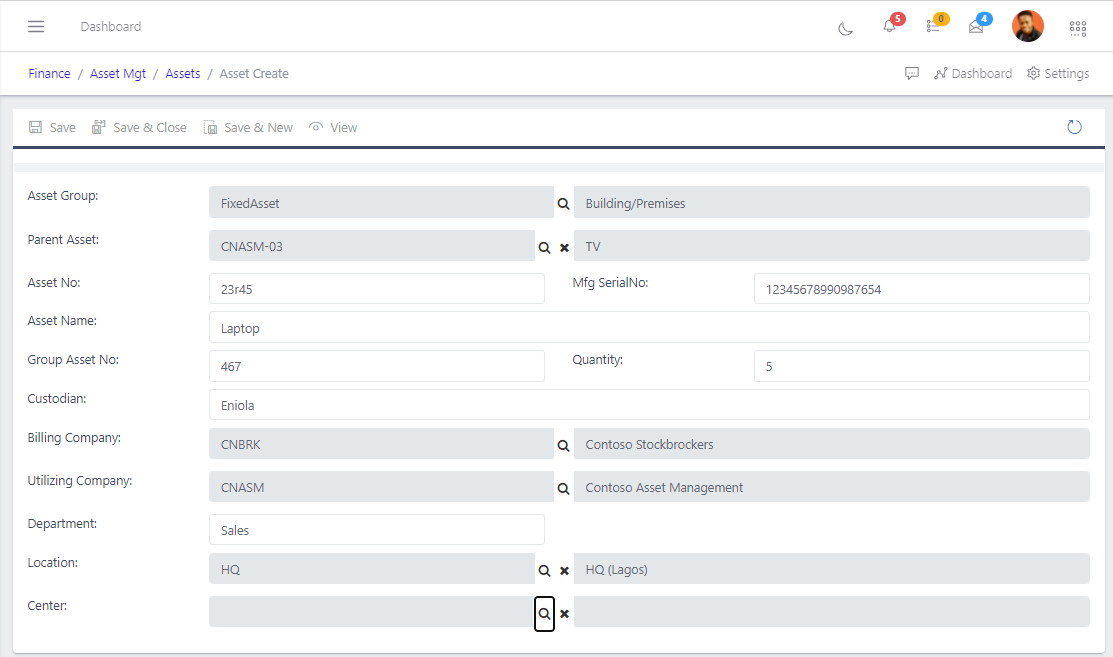
| Asset Group | The category the asset belongs to — determines GL accounts and maintenance reminders |
| Acq. Value | The total acquisition cost of the asset |
| Residual Value | The expected scrap or trade-in value at the end of the asset’s useful life |
| Amort Type | Depreciation method — StraightLine spreads cost evenly over the asset’s life |
| Amort Factor | The annual depreciation rate used to compute each period’s charge |
| Net Book Value | Acquisition Value minus Accumulated Amortisation |
| Source | How the asset was obtained — Purchase, Transfer, Donation, etc. |
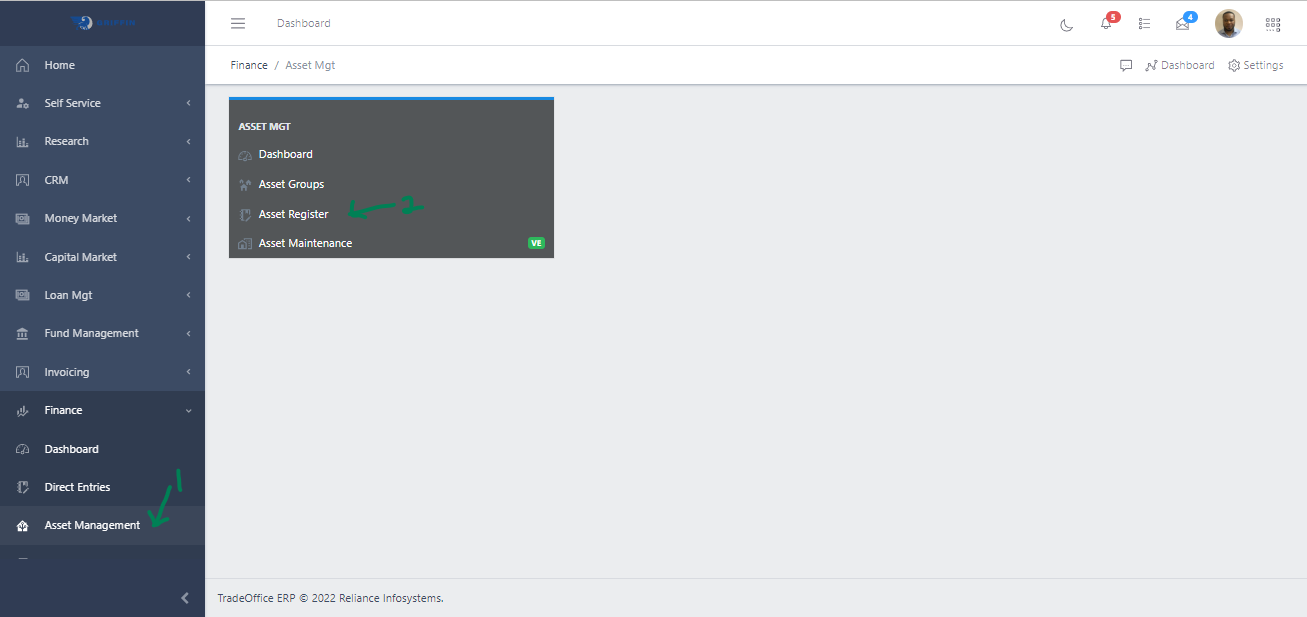
Navigate to Admin → Asset Management → Asset Register.
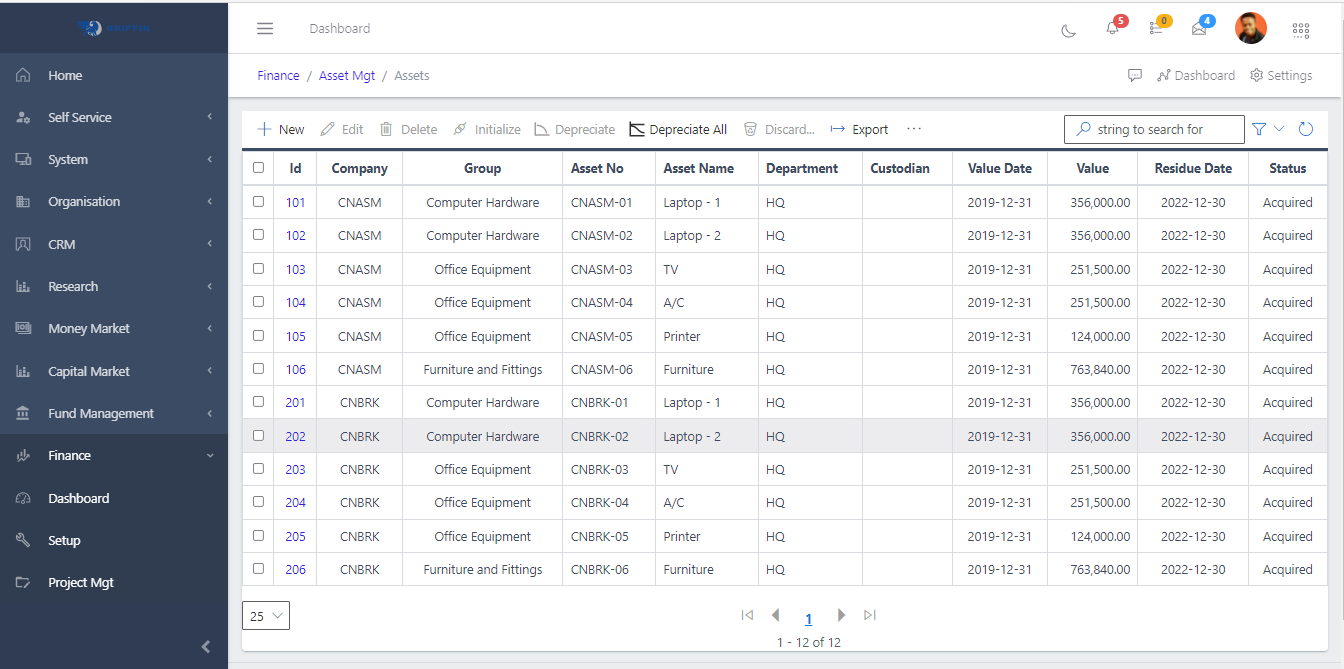
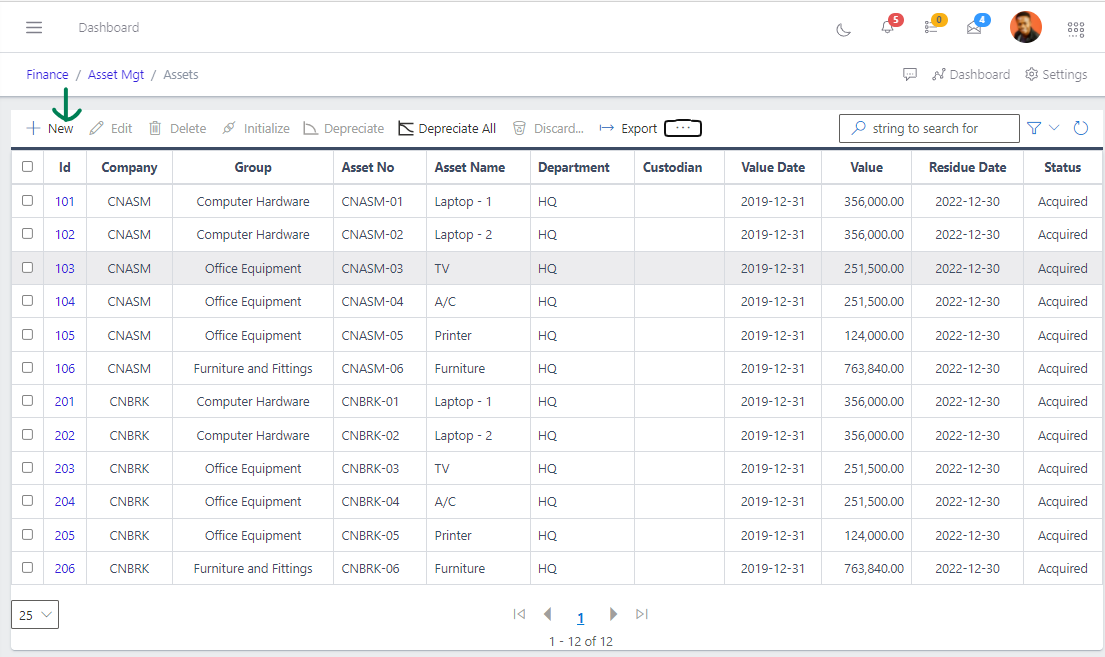
From the list or an individual asset record, click Depreciate to process a single period’s charge. Use Depreciate All from the list to batch-process all eligible assets.
Results appear on the Amortisation sub-tab (Amort Date, Amort Value, Post Id) and the Aging Policy sub-tab (Accumulated Amort, Net Book Value).
To reverse a depreciation run within the same period, use Undepreciate or Undepreciate All from the overflow menu.
Select the asset and click Discard. In the disposal modal:
The system removes the asset’s cost and accumulated amortisation from the balance sheet and posts the gain or loss to the Profit/Loss account configured for the asset group.