Title here
Summary here
Scenario: Global Trade Logistics serves as a primary financial clearing partner within Operamadic ERP. Under their global account, they manage distinct downstream target entities and freight-forwarding vendors.
Due to an urgent clearance handling contract, the main Transferor needs to deploy a batch fund payout totaling 2,500,000 NGN out of their main balance reservoir pool. This payout must be fragmented across distinct target Transferee profiles and dedicated Profile Companies (e.g., West Coast Port Operators and Lagos Hub Custom Handling). To complete this cleanly, the treasury technician needs to build an external transaction container, map discrete entry breakdowns, assign validation workflow paths, and attach certified compliance proof paperwork.
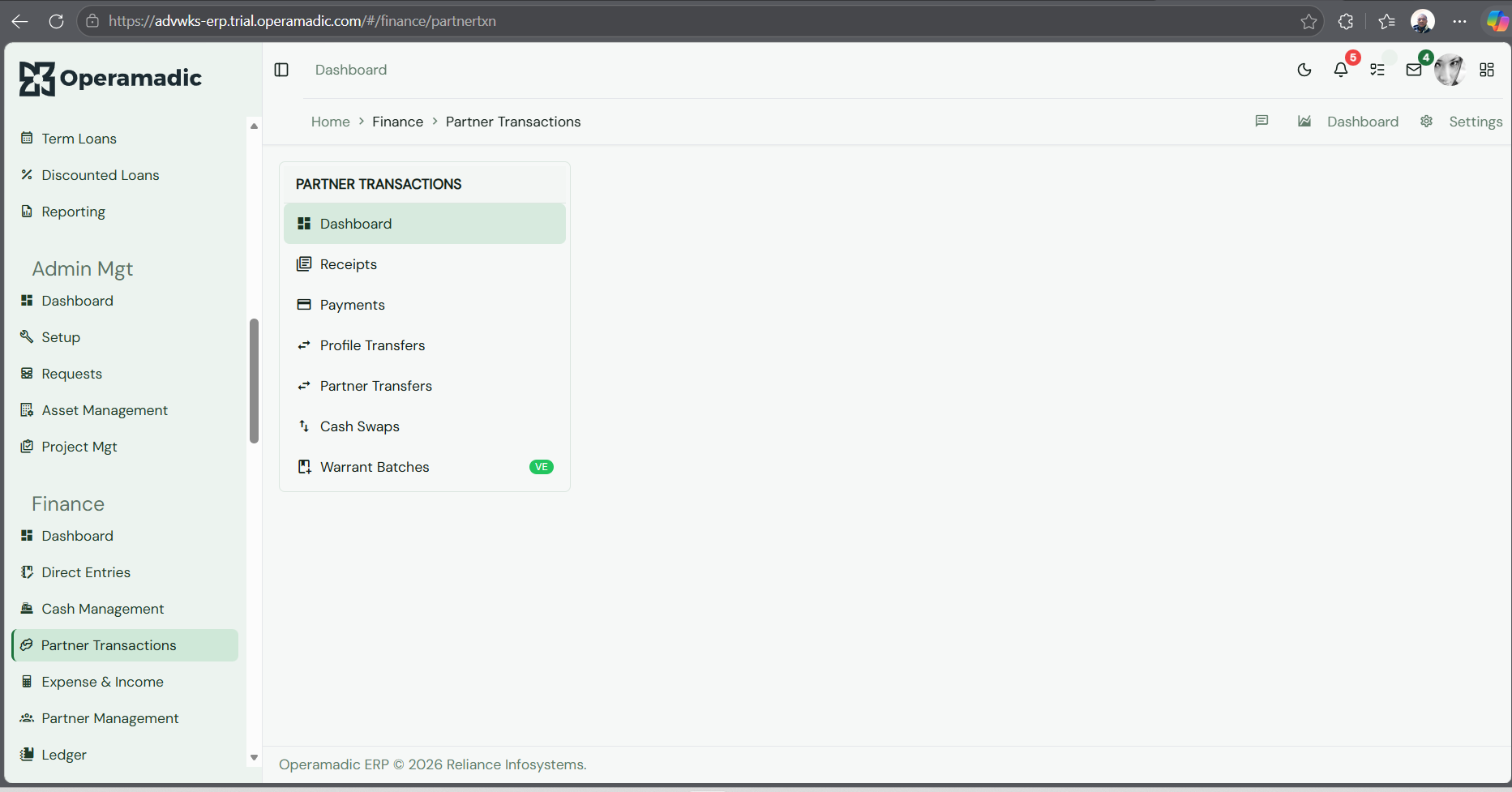
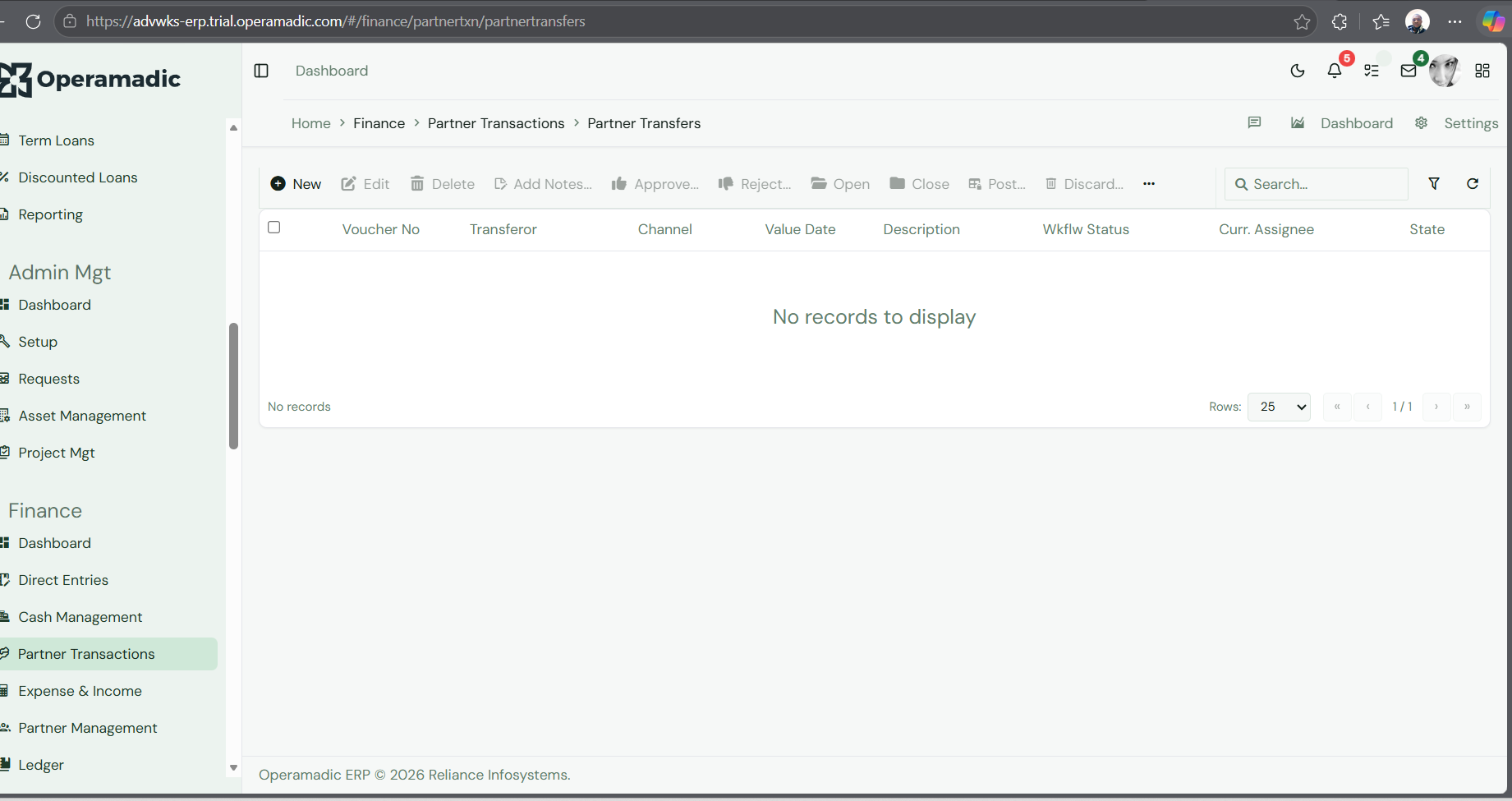
To safely look up specific audit trials, balance runs, or trace entries assigned to specific system actors, open the advanced parameters filter screen dialog overlay.
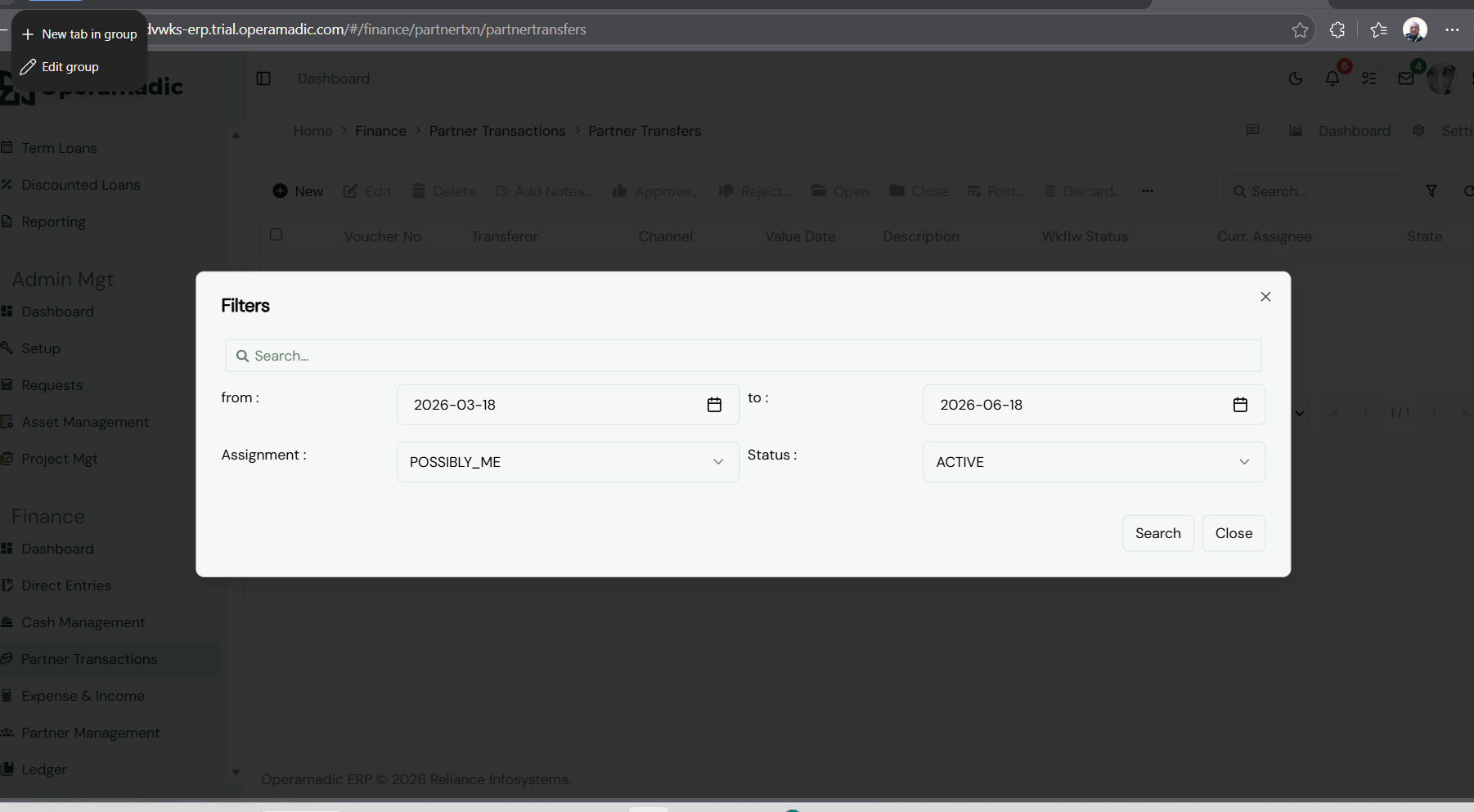
Optimize the target queries using the following setup criteria fields:
from : / to :): Define standard accounting checking lines (e.g., reviewing custom entries initialized between 2026-03-15 and 2026-06-15).(all) – Broad global system visibility index.EXPLICITLY_ME / POSSIBLY_ME – Isolates files strictly parked under your operational signature queue waiting for action execution.MY_SECROLE / MY_UNIT / MY_DIVISION / MY_ORGROLE – Filters down to specific functional department zones, branches, or organizational units.NOT_HUMAN – Targets programmatic background journal transfers run by internal service nodes.ACTIVE, COMPLETED, or NEGLECTED.Gateway_ToTransact, Gateway_ToConfirm, Request_Invalidate, or Invalidated.To create a brand new batch or single source outbound partner allocation journal run:
+ New button positioned at the far left edge of the actions horizontal row panel.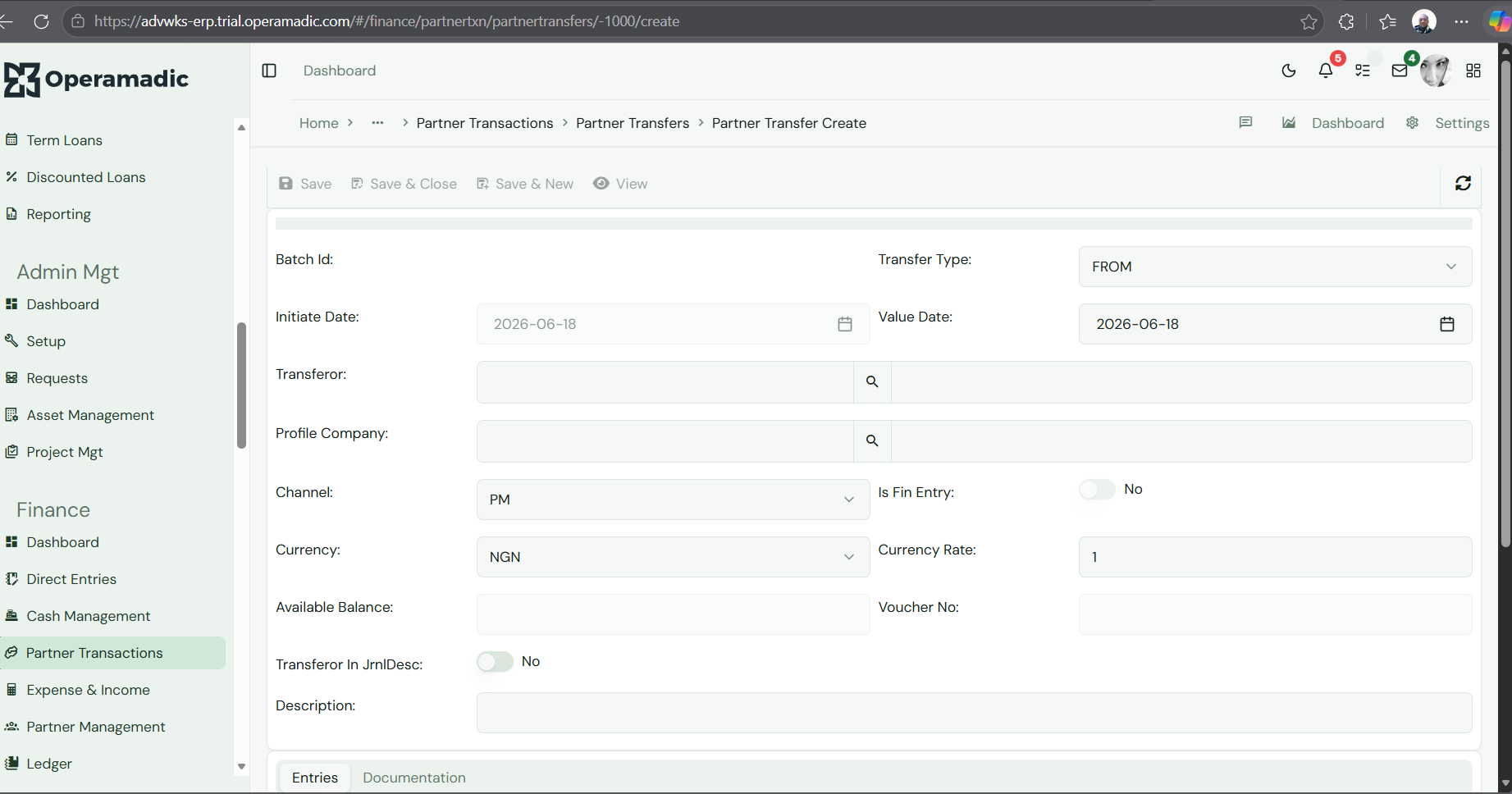
The header parameters panel configures global execution variables:
FROM to designate sending liquidity away from an internal account profile, or TO for handling collections receipts processing).2026-06-15).PM).NGN currency with an active multiplier factor value parameter of 1).After configuring the high-level transfer information on the header, you must define the destination accounts and specify how the total amount should be split.
+ New to load the entry split allocation modal window.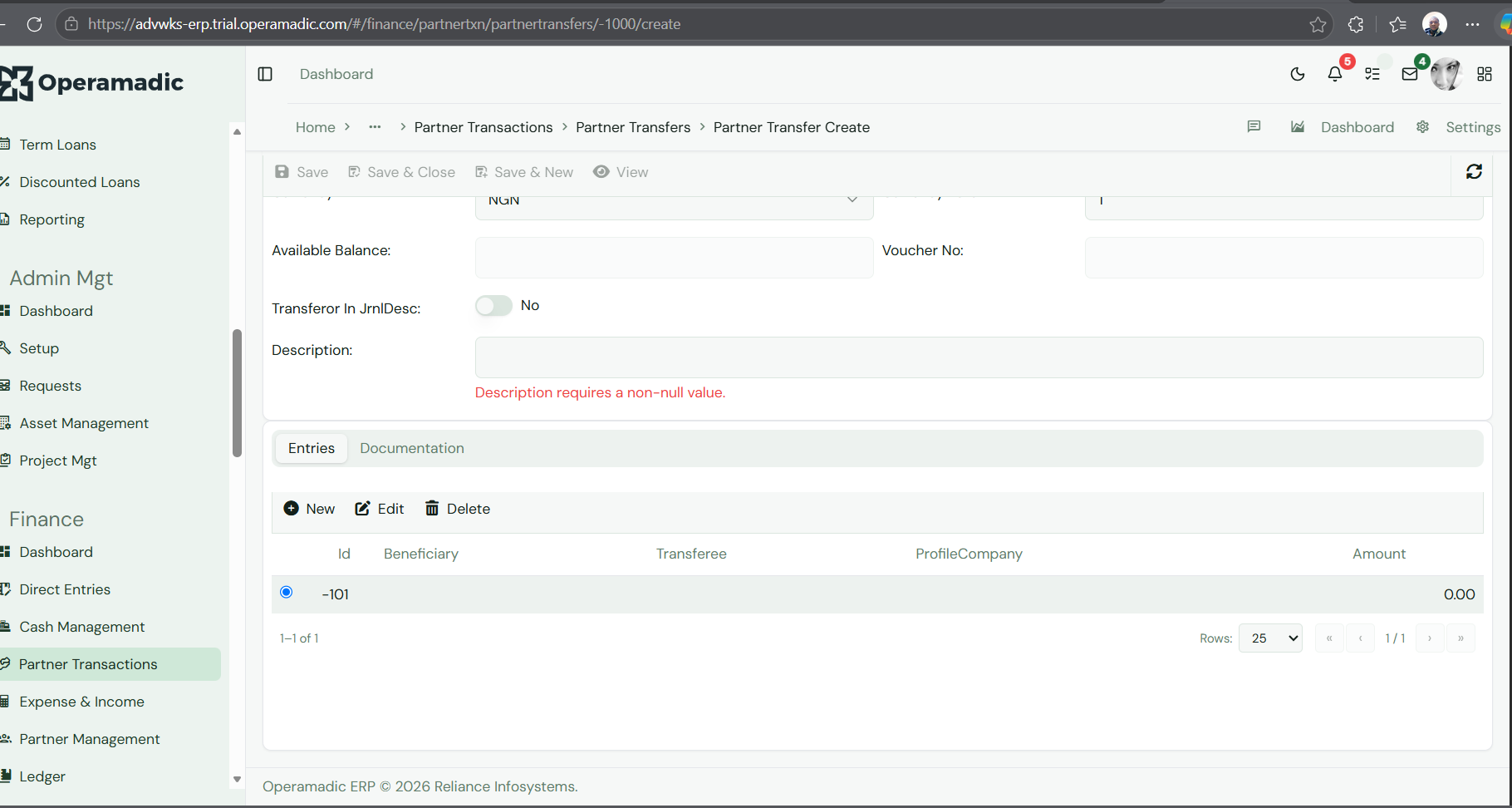
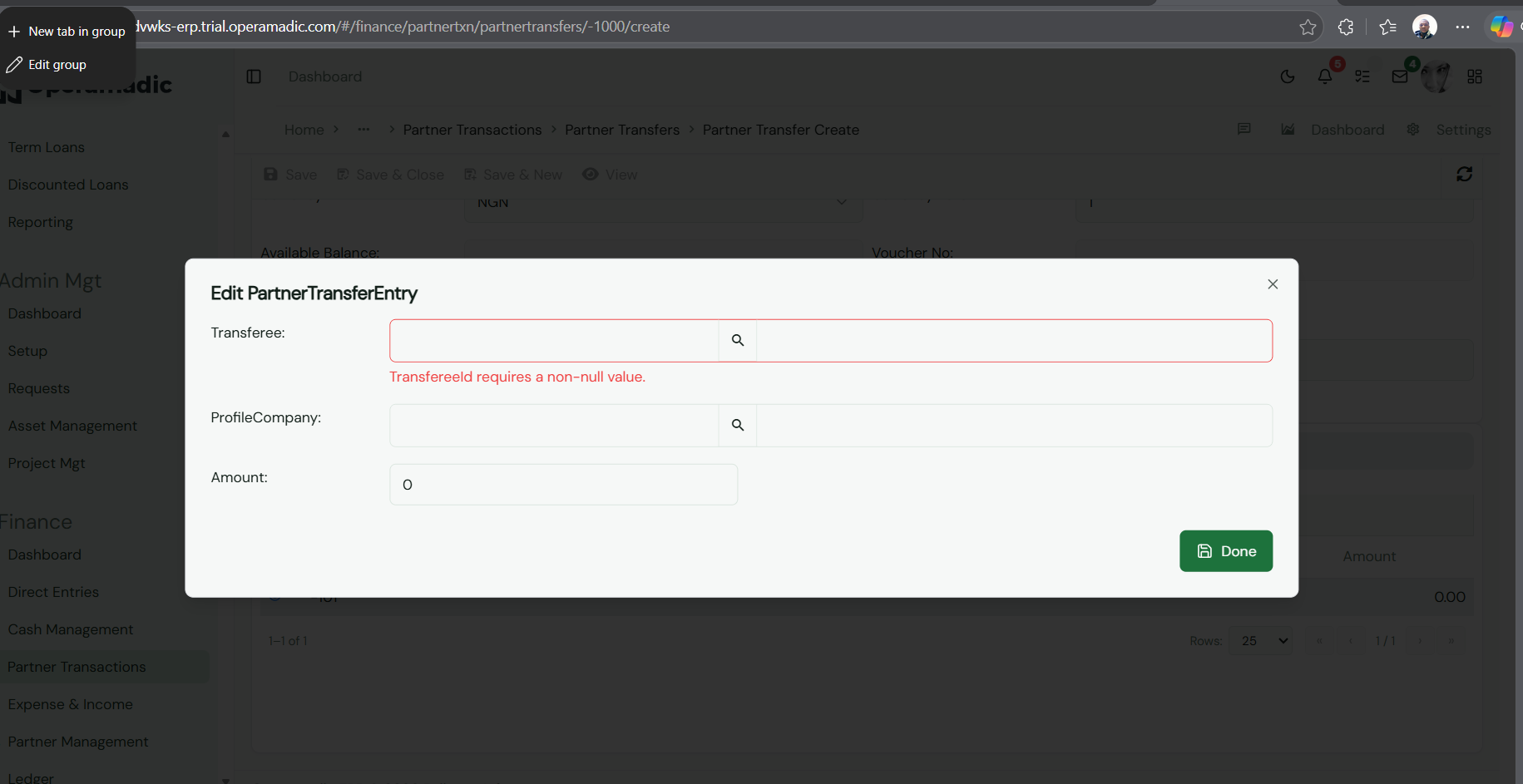
Configure the required variables for each entry branch line item:
Done to lock the item split entry data record back down to the parent transaction line framework table view database rows. Repeat this block to handle complex multi-account balance splitting structures.To satisfy strict tracking and internal financial audit requirements, you must attach verified supporting documents (such as explicit bank receipts, board approval letters, or cargo clearing invoices) directly to the transaction record container before submitting it for review.
+ New.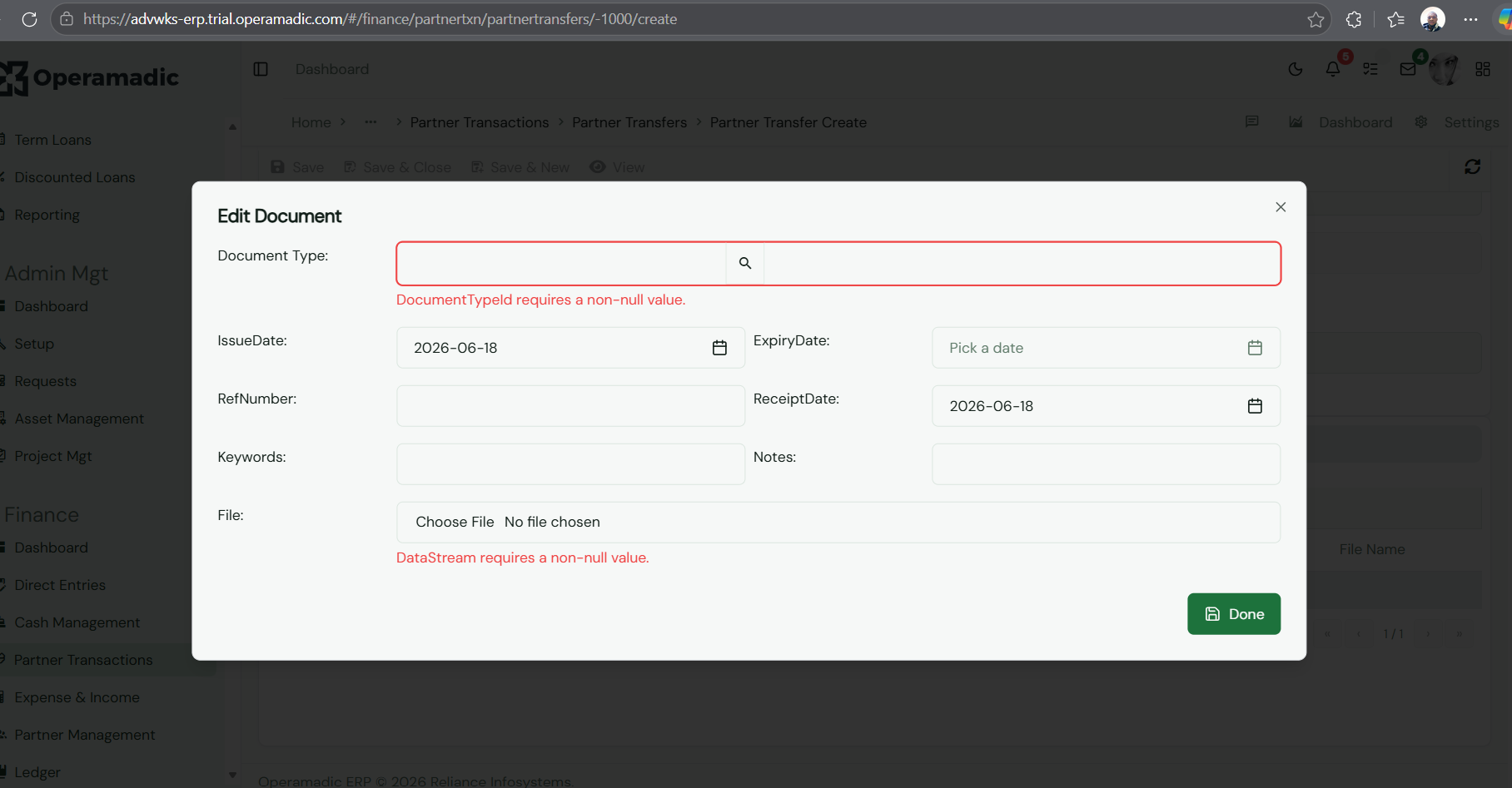
Provide these tracking fields:
Done to close the document window.Save & Close from the topmost global primary template bar area to save your draft record into the database repository system stack.Once a Partner Transfer item configuration state file is recorded as an active dashboard entry line row item component inside the master ledger index workspace, highlight the tracking line row selector box to lock action focuses on it. This activates the suite of administrative control bar tools:
Edit: Opens the item details page back up to modify numbers, add entry lines, or change profile routing before locking the document for review.Delete: Permanently drops an unposted or broken draft transaction model instance out of the platform indexes completely.Add Notes...: Click this button to append an unalterable text log entry description detail explanation block directly to the item record history for audit purposes (e.g., “Transfer generated to reallocate regional handling fuel cost overheads for Q2 project runs”).Approve / Reject: Administrative action overrides used by financial controllers or operations managers to authorize or turn back pending transfer requests based on internal risk policy guidelines.Open / Close: Shifts the working administrative status boundaries of transactions to lock down editing fields.Post: Executes the actual balancing accounting adjustments, securely shifting the fund lines across your digital corporate ledger framework structure accounts.Discard: Permanently cancels a problematic transaction file run, transitioning its workflow phase field markers directly into an inactive invalid state path.Unfinalize: Reverses previous tracking finalization states, restoring editable entry control access variables for troubleshooting corrections workflows.... (More Actions / Ellipsis) / Run All: Clicking the ellipsis button exposes an extended command utility list menu dropdown layout sequence. Here, selecting Run All instructs the automated transaction background engine processing nodes to immediately clear all matching approved and validated queues directly into simultaneous system-wide settlement executions.