Trial Balance

  • Access the Partner Tranasactions sub-module of the Finance module

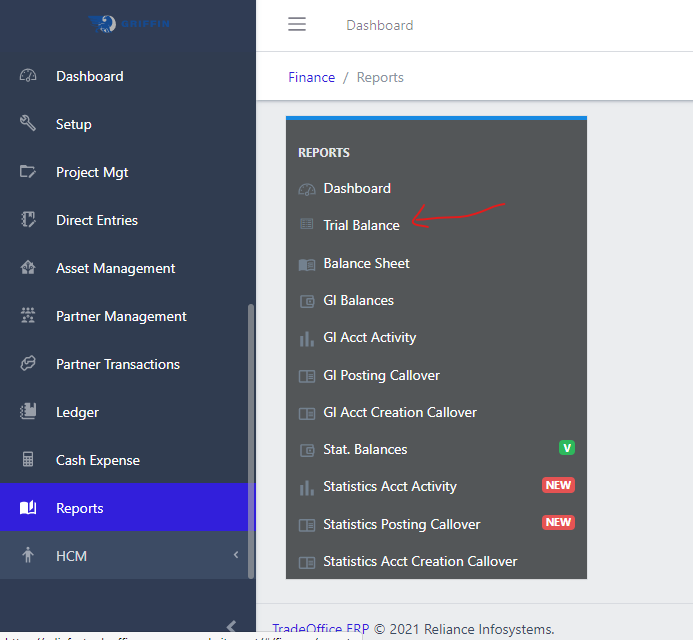
  • Click on Trial Balance

Image showing Trial Balance
Fig 1.0 Trial Balance navigation

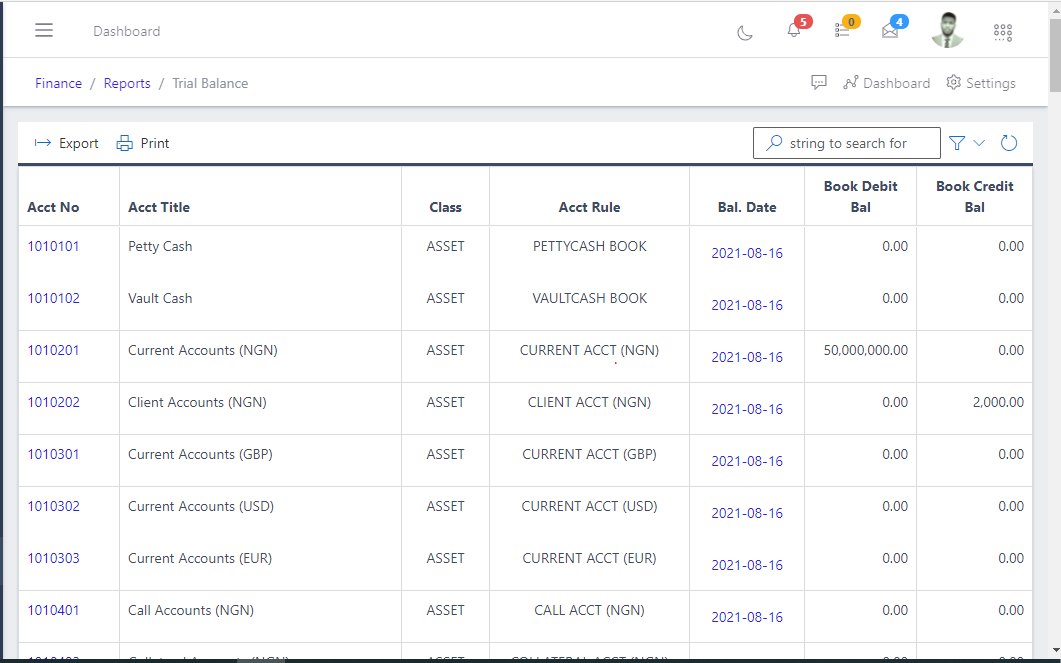
  • This displays a list view of Trial Balance.
Image showing list view of Trial Balance
Fig 1.1 List view of Posting CallOver

Filter list of Trial Balance

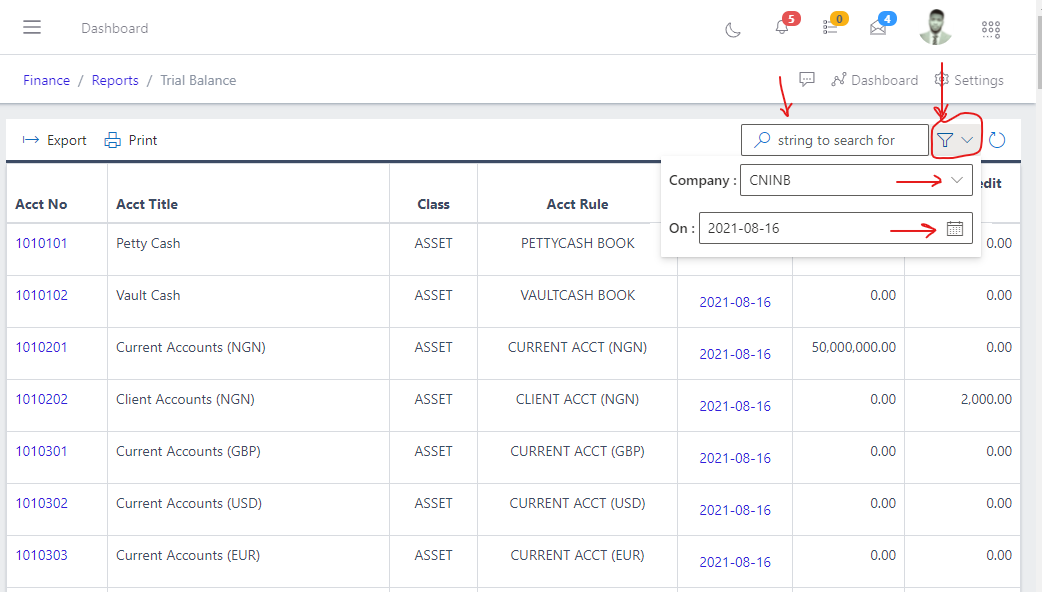
  • Use the Filter button, when clicked, gives you a dropdown where you can specify various parameters for filtering the records:
    • Search string: for filtering records
    • Company
    • On
Image showing Search, filter button and filter options
Fig 2.0 Image showing Search, filter button and filter options

Viewing Trial Balance

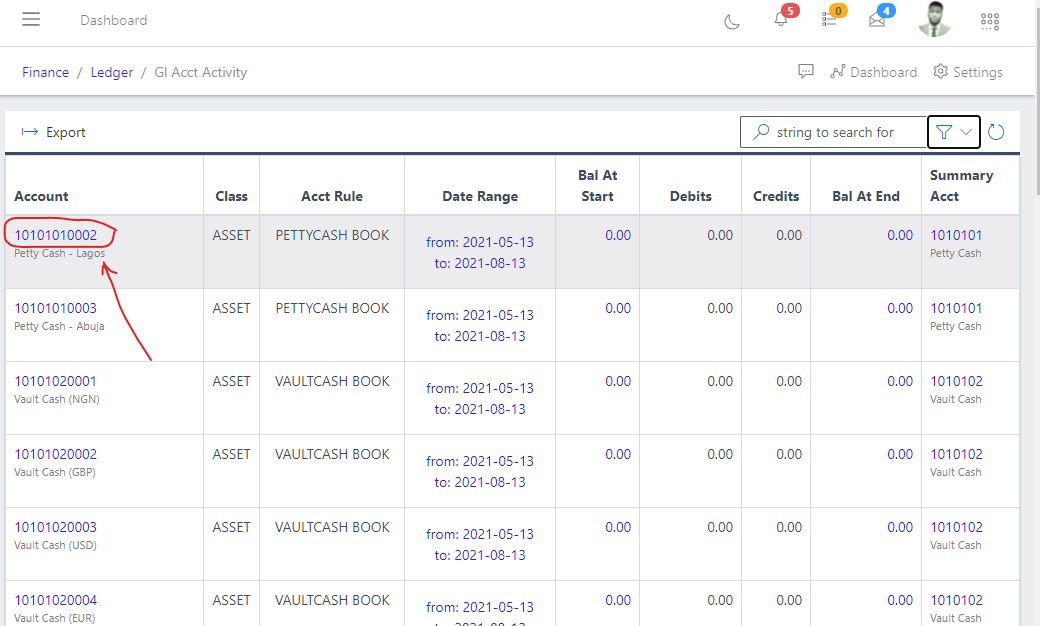
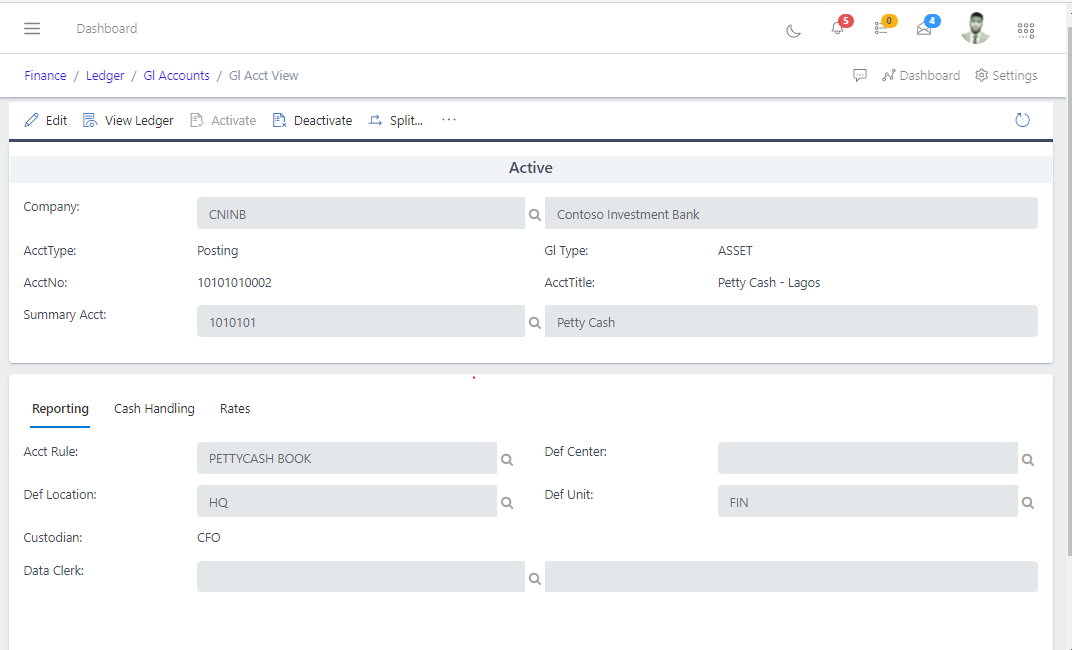
  • On the Trial balance list click on the Account Number, it will redirect you to the GL Account view
Image showing account number
Fig 3.0 Image showing Account number.

Image showing GL Account view
Fig 3.1 GL Account view.

Exporting Trial Balance

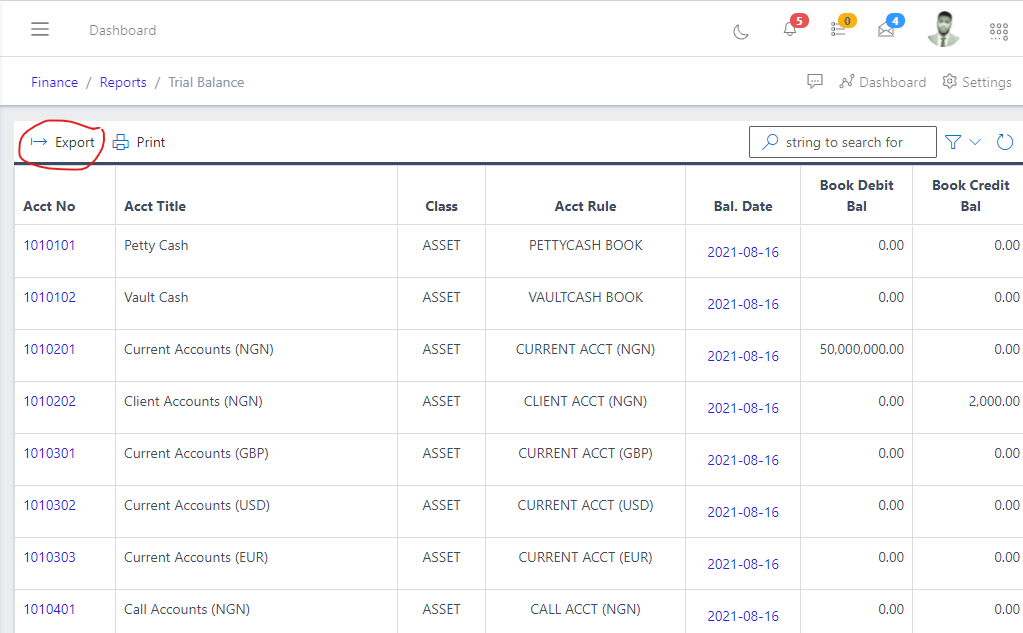
  • Export the Trial Balance data to excel by clicking the Export button
Image showing Trial Balance export button
Fig 4.0 Image showing Trial Balance export button.

Note: Once the export button is clicked, it pops up an option to download a copy of the Trial Balance to your computer system as an excel document.

Printing Trial balance

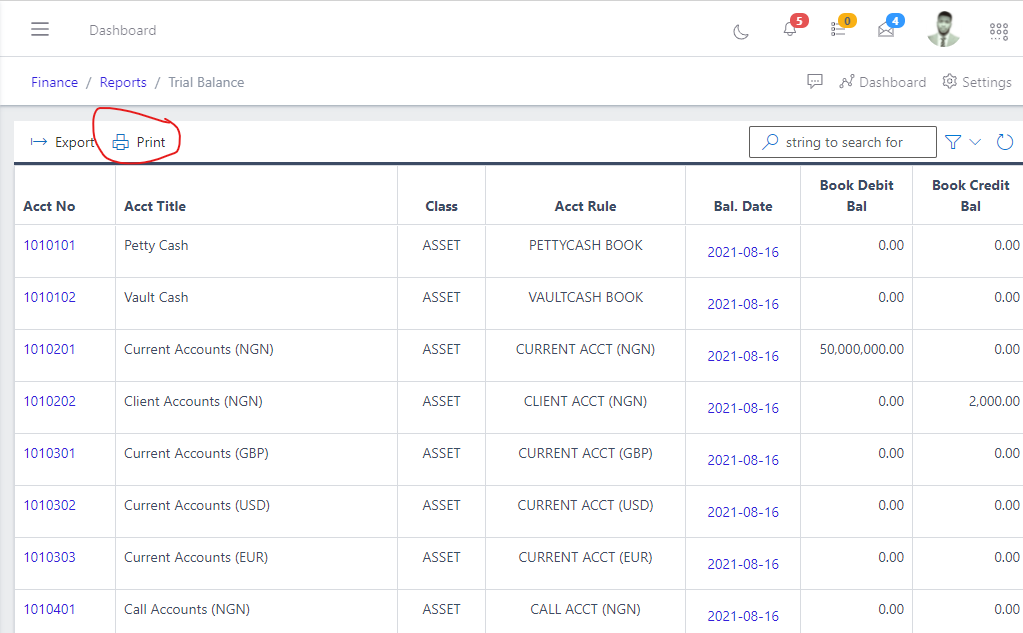
  • Print the Trial balance data by clicking the Print button.
Image showing Trial balance print button
Fig 5.0 Image showing Trial balance print button.