My Docs
Docs
My Docs
Docs
Blog
Search
Search
Cancel
Loading search index…
No recent searches
No results for "
Query here
"
Title here
Date here
Summary here
Prologue
Overview
Introduction
Quick Start
Contact Us
Admin Management
Overview
Asset Management
Overview
Asset Groups
Asset Group Account
Asset Register
Maintenance Schedule
Operating Logs
Maintenance Jobs
Project Management
Overview
Projects
Project Types
Project Output Types
Project Status Reports
Project Templates
Tags
Project Outputs
Project Tasks
Requests
Overview
Expense Advances
Expense Retirements
Setup
Overview
Fin Configs
Activities
Overview
Activity Types
Routines
Activity Logs
Tasks
Subscriptions
Overview
Member Grades
Schemes
Company Subscriptions
Staff Subscriptions
Finance
Overview
Setup
Overview
FI Bases
Centers
Fin Config
Payment Processors
Cash & Expenses
Overview
Petty Cash Reimburse
Cash Book Balances
Currency Swaps
Expense & Income
Overview
Expense Types
Cash Disbursement
Expense Advances
Expense Retirements
Income Types
Income (One-Off)
Direct Entries
Overview
Recurring Journals
Statistics Journals
GL Journal
Ledger
Overview
GL Account Activity
GL Accounts
GL Balances
Statistics Balances
GL Revalue
Statistics Account
Statistics Acct Activity
Partner Management
Overview
Customer Credit Rules
Customers
Sales Agents
Vendors
Partner Groups
Customer Accounts
Customer Balances
Customer Debit Balance Age
Vendor Balances
Vendor Credit Rules
Sales Agent Balances
Partner Transactions
Overview
Payments
Receipts
Partner Transfers
Cash Swaps
Profile Transfers
Warrant Batches
Statements
Overview
Other Comp. Income (FY)
Other Comp. Income (Ranged)
Profit & Loss(FY)
Profit & Loss(Ranged)
Stat. of Comp. Income (FY)
Balance Sheet
Trial Balance
Reports
Overview
GL Account Creation CallOver
GL History Audit
GL Posting CallOver
Statistics Account Creation CallOver
Setup
HCM
Overview
Setup
Overview
Tags
Disciplines
Skills
Performance Categories
Pay Items
Org Career Tracks
Hierarchies
Organograms
Org Roles
Staff Groups
HR Config
Confirmation Processes
Onboarding Processes
Offboarding Processes
Reward Types
Records
Overview
Staff
Comms
Staff Grades
Staff Positions
Leave Mgt
Overview
Leave Types
Leave Quotas
Leave Years
Leave Rotas
Leave Apps
Performance Mgt
Overview
Annual Targets
Activity Logs
Appraisal Sessions
Perf Appraisals
Workforce Mgt
Overview
Applicants
Job Requests
Staff Onboarding
Staff Offboarding
Loans
Overview
Loan Types
Payroll
Overview
Grade Packages
Staff Pay Items
Payroll Years
Scheme Enrolments
Loan Types
Reimburse Claims
Payroll Runs
Staff Balances
Invoicing
Overview
Purchasing
Overview
Customers
Reporting
Overview
Cash Balances
Activity Over Period
Sales
Overview
Customer Receipts
Setup
Overview
Notifications
Organisation
Overview
Master Data
Overview
Countries & States
Holidays
FX Rates
Finance Houses
Professional Bodies
Commission Groups
Taxes
Tax Dates
Simple Value Lists
Key Value Lists
Exchanges
Structure
Overview
Tags
Company
Regions
Groups
Location
Units
Stores
Supply Chain Management
Overview
Setup
Overview
Measure Class
Measure Unit
Sale Class
Item Mgt
Overview
Brands
Item Groups
Items
Item Vendors
Price Batch
Prices
Inventory
Overview
Conversions
Count & Recons
Item Transfers
Item Journals
Purchasing
Overview
Orders
Requisitions
Deliveries
Solicitations
Invoices
Quotes
Returns
Sales
Overview
Quotes
Requisitions
Orders
Invoices
Deliveries
Returns
Activity
Overview
Cash Balances
Valuation Summary
Self Service
Overview
Admin
Overview
Petty Cash
Expense Advances
Expense Retirements
Records
Overview
Profile
Past Positions
Leave Mgt
Overview
My Leave Quotas
My Leave Rotas
My Leave Apps
Leave Years
Performance Mgt
Overview
Downline
Perf Targets
Perf Appraisals
Compensation
Overview
Schemes
Past Grades
Pay Slips
System
Overview
Document Mgt
Overview
Doc Types
Doc Req Groups
Doc Req Items
Canned Reports
Notifications
Overview
Notification Types
Notification Templates
Notification Queue
Jobs
Overview
Scheduled Tasks
Security
Overview
Modules
Sys Roles
Entity Operations
RBAC Templates
Users
Audit Ops
Audit Values
Vendor Relationship Management
Overview
Records
Overview
Prevailing Credit Rules
Credit Rules Callover
Vendor Groups
Vendor Signups
Vendors
KYV Checklist
Prevailing Rel Mgrs
Vendor Admin
Overview
Cases
Case Callover
Doc Required Groups
Doc Required Items
Activity
Overview
Cash Balances
Activity Over Period
Transactions
Overview
Receipts
Payments
Profile Transfers
Partner Transfers
Cash Swaps
Relationship
Overview
Upcoming Birthdays
Call Notes
Default Subscriptions
Vendor Subscriptions
Notifications
Portal
Overview
Customer Questions
Web Profiles
CRM
Overview
Business Development
Overview
Leads
Opportunities
Proposals
Sales
Overview
Sales Agents
Customers
Customer Fin Accts
Setup
Overview
Tags
Customer Groups
Sales Agent Groups
Records
Overview
Sales Agents
Customer Signups
KYC Checklist
Customer Fin Accts
Prevailing Credit Rules
Credit Rules Callover
Customers
Prevailing Relationship Managers
Client Admin
Overview
Doc Req Groups
Doc Req Items
KYC Relationship Rules
Case Callover
Case Categories
Cases
Transactions
Overview
Cash (Soft) Liens
Payments
Receipts
Profile Transfers
Partner Transfers
Cash Swaps
Activity
Overview
Cash Balances
Term Loans
Discount Loans
Portal
Overview
Onboarding Categories
Web Accounts
Web Users
Reviewed Faq
Customer Questions
Relationship
Overview
Upcoming Birthdays
CallNotes
Default Subscriptions
Customer Subscriptions
Notifications
Bulk Mail Types
Bulk Subscriptions
Bulk Messages
Loan Management
Overview
Discount Loans
Overview
Loan Types
Loans
Reporting
Overview
Collateral Types
Setup
Overview
Collateral Types
Market Rates
Term Loans
Overview
Customer Loan Types
Customer Loans
Loan Repay Plans
Loan Payment Entries
Loan Provision Entries
On this page
Navigate to Regions
Create a new Region
View Region
Edit Region
Activate a Region
Deactivate a Region
Change Ownership of a Region
Merge two Regions
Regions
On this page
Navigate to Regions
Create a new Region
View Region
Edit Region
Activate a Region
Deactivate a Region
Change Ownership of a Region
Merge two Regions
Navigate to Regions
#
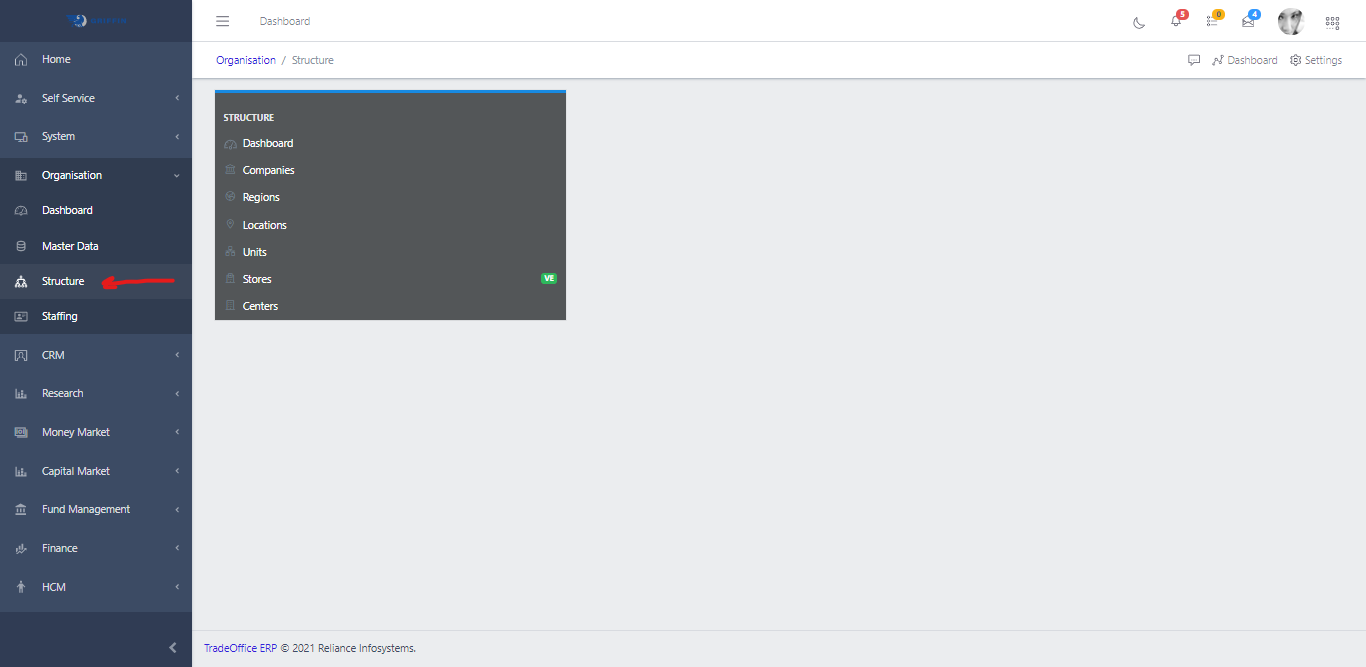
Access the Structure sub-module of the Organisation module.
Fig 1.0
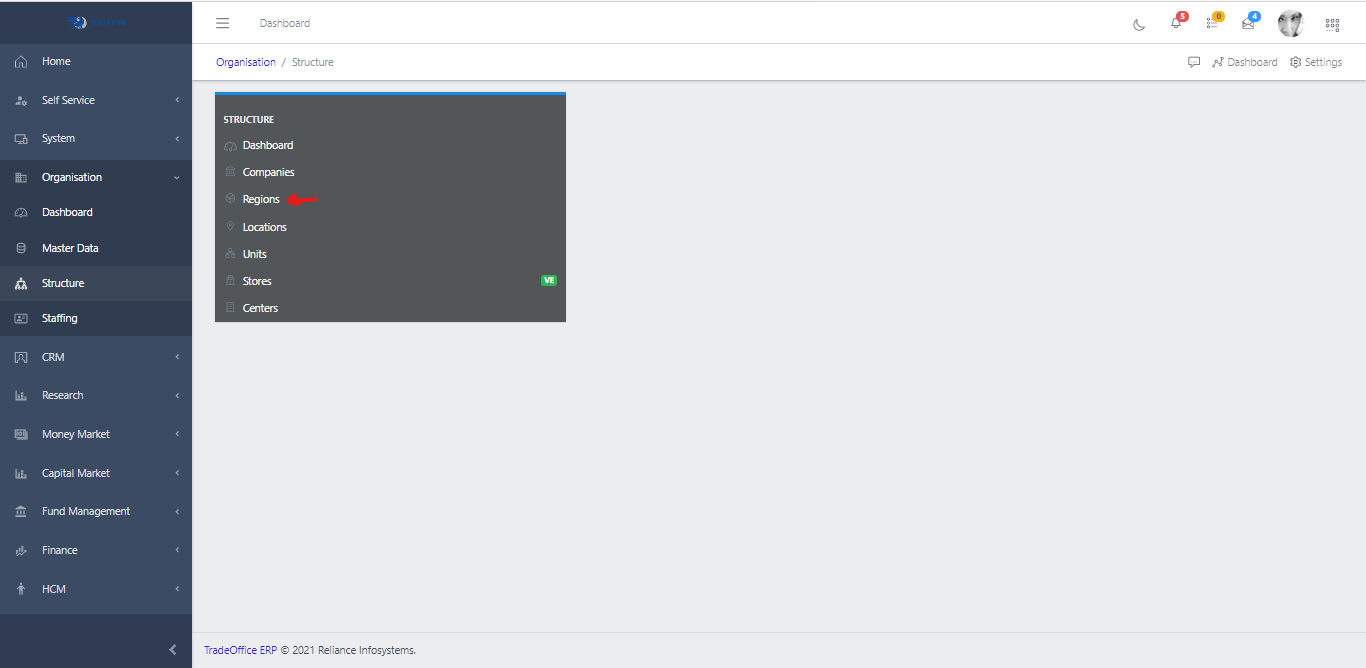
Click on Regions
Fig 1.1
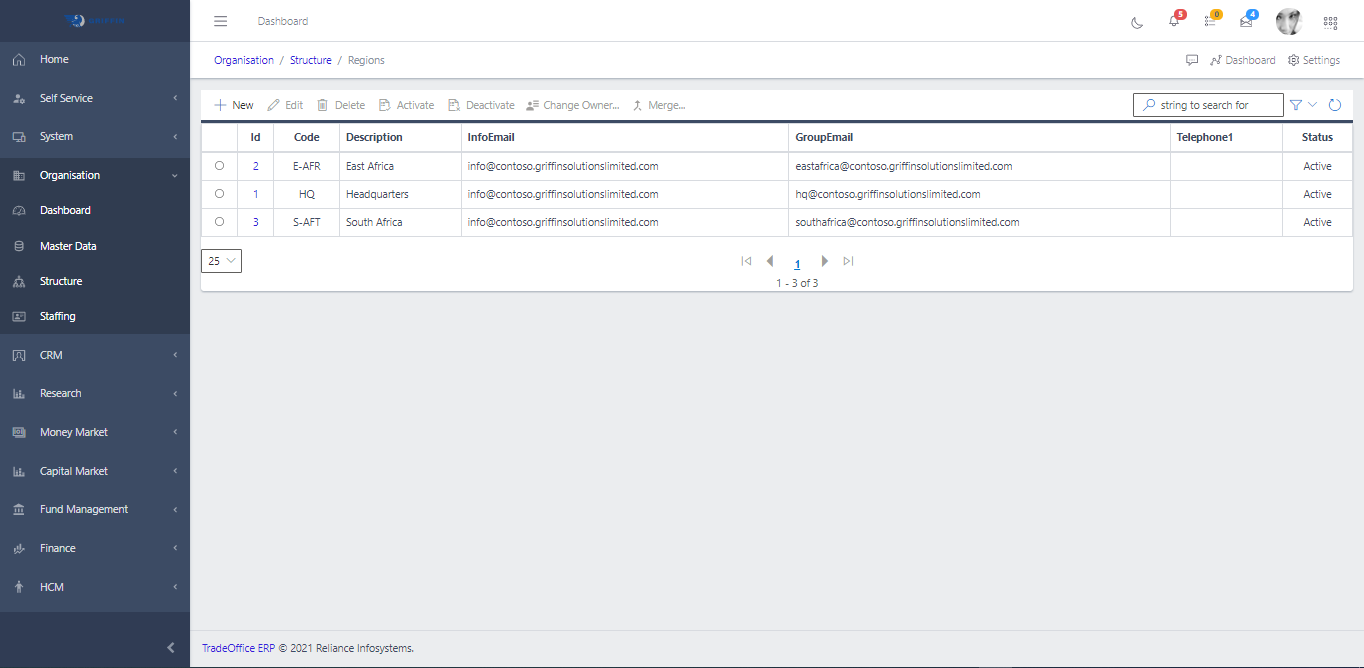
This displays a list view of Regions.
Fig 1.2
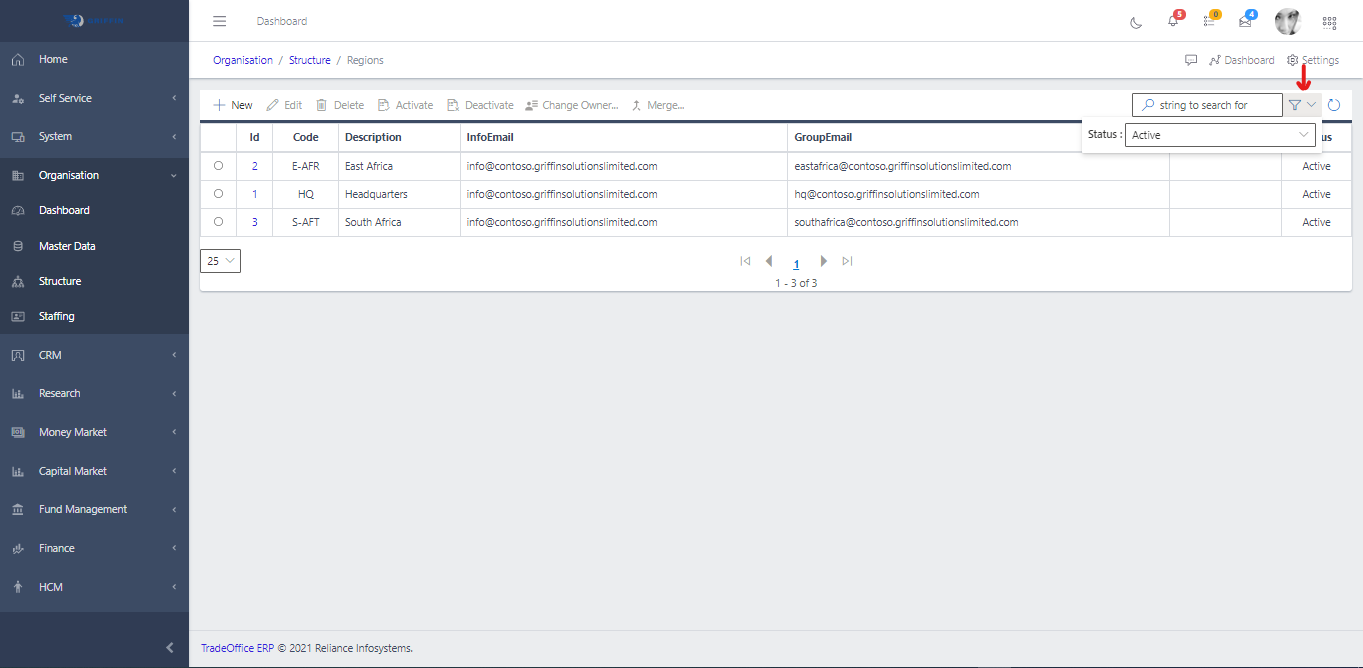
Use the Filter button, when clicked, gives you a dropdown where you can specify various parameters for filtering the records:
Search string: for filtering records
Status to show the current status of the Region
Fig 1.3
Create a new Region
#
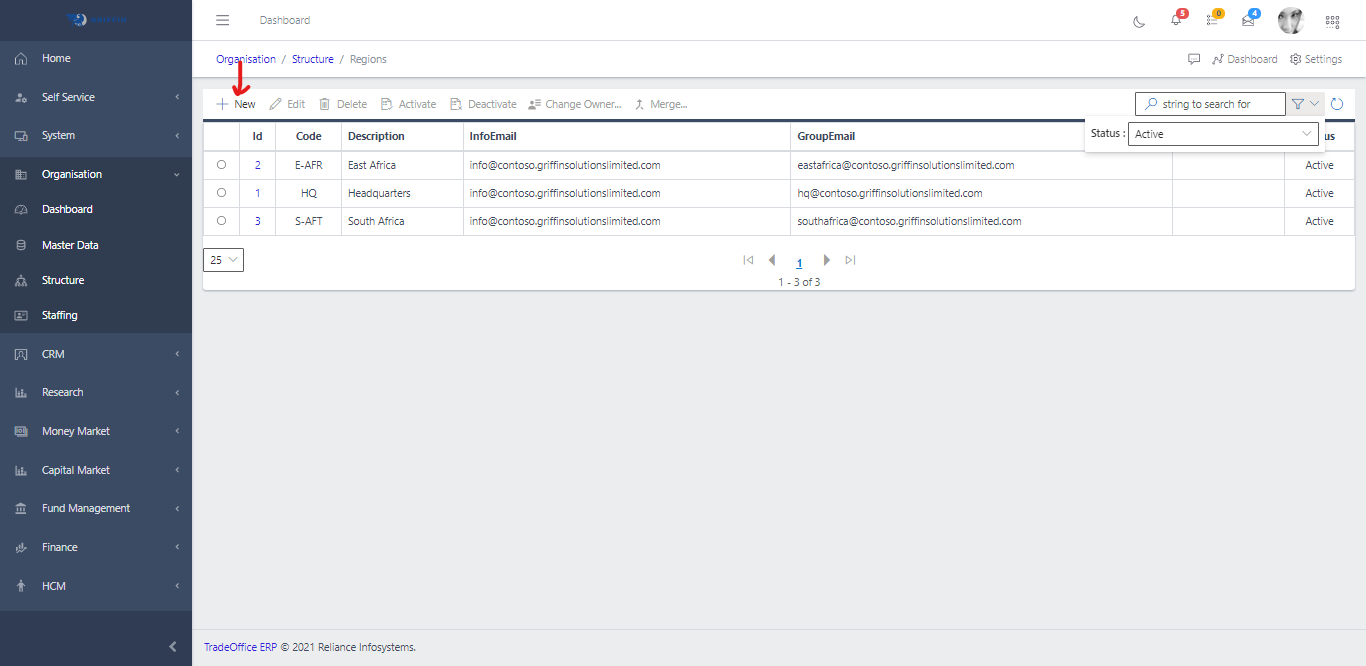
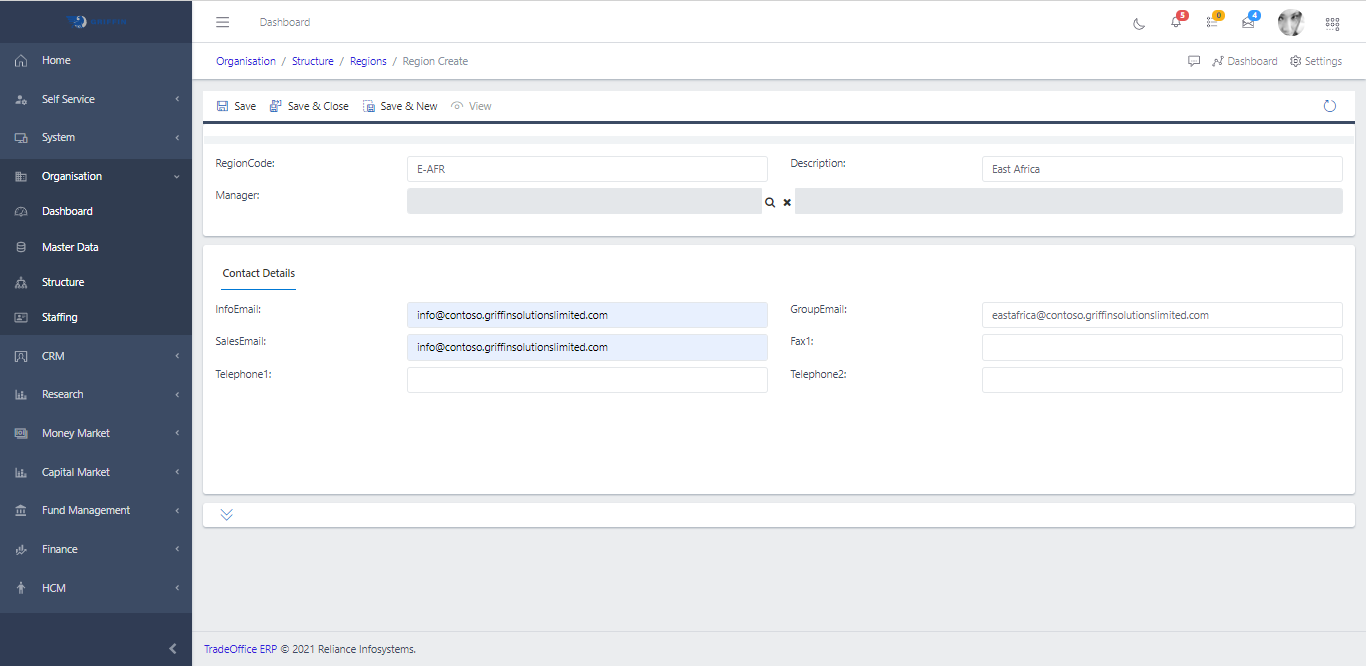
To create a Region, hit the New button in the toolbar area and populate the form fields.
Fig 2
The following are some of the fields that needs to be populated:
Manager: Only populate this field if the newly created company is part of a major company.
Region code
Description
You also need to populate the fields in the following tabs:
Contact Details: Contact details of the region manager
Hit the Save and close button
Fig 2.1
View Region
#
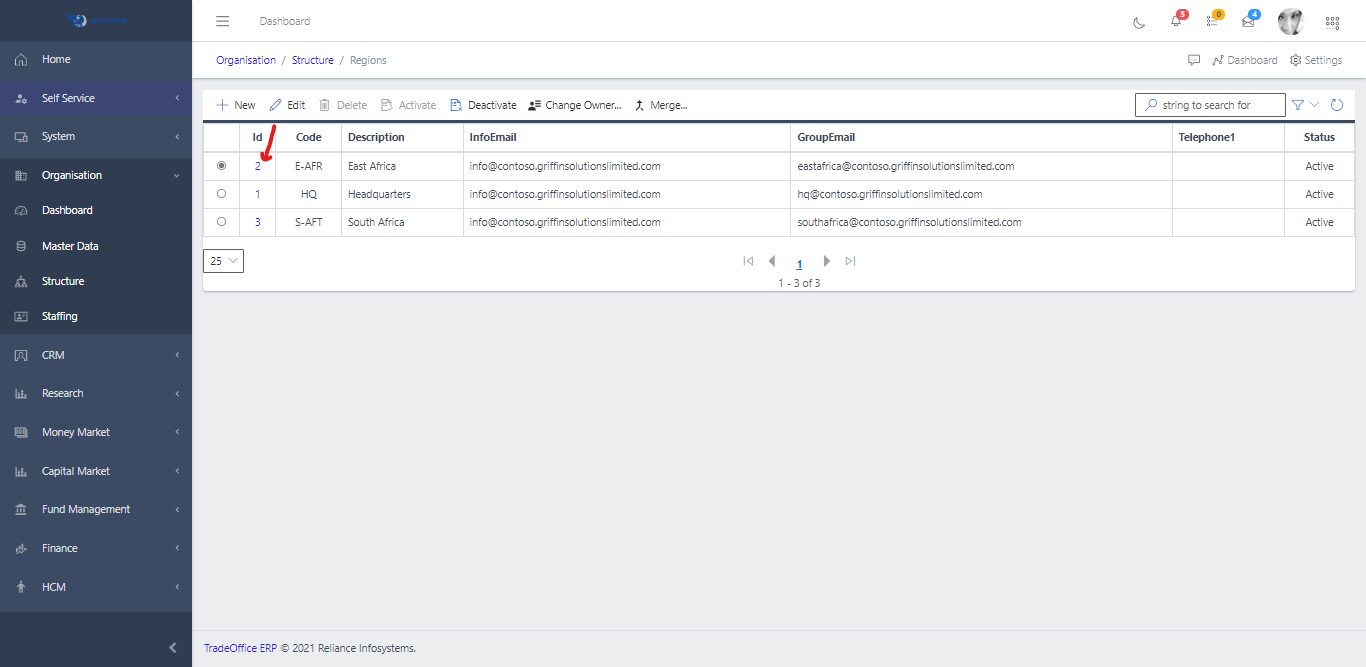
To view a region, click the ID of the region you want to view
Fig 2.2
Edit Region
#
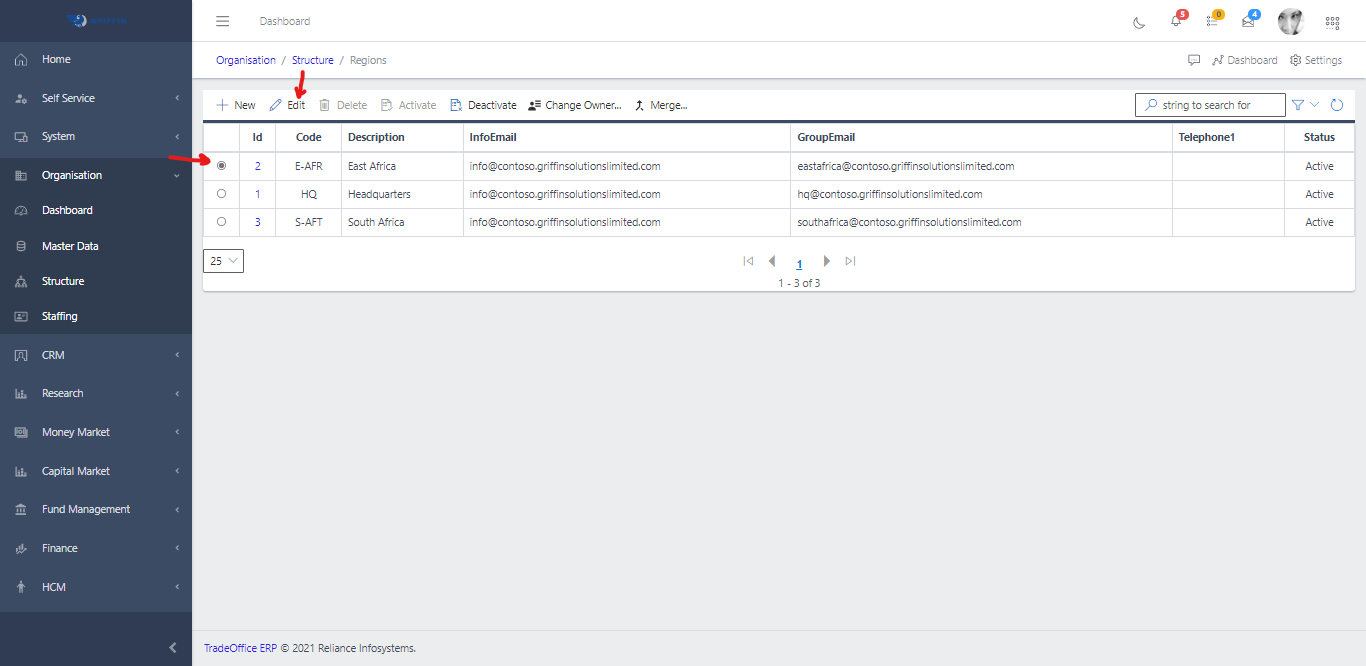
To edit a region, select the particular record you want to edit by clicking the radio button
Click the Edit button
Fig 2.3
Activate a Region
#
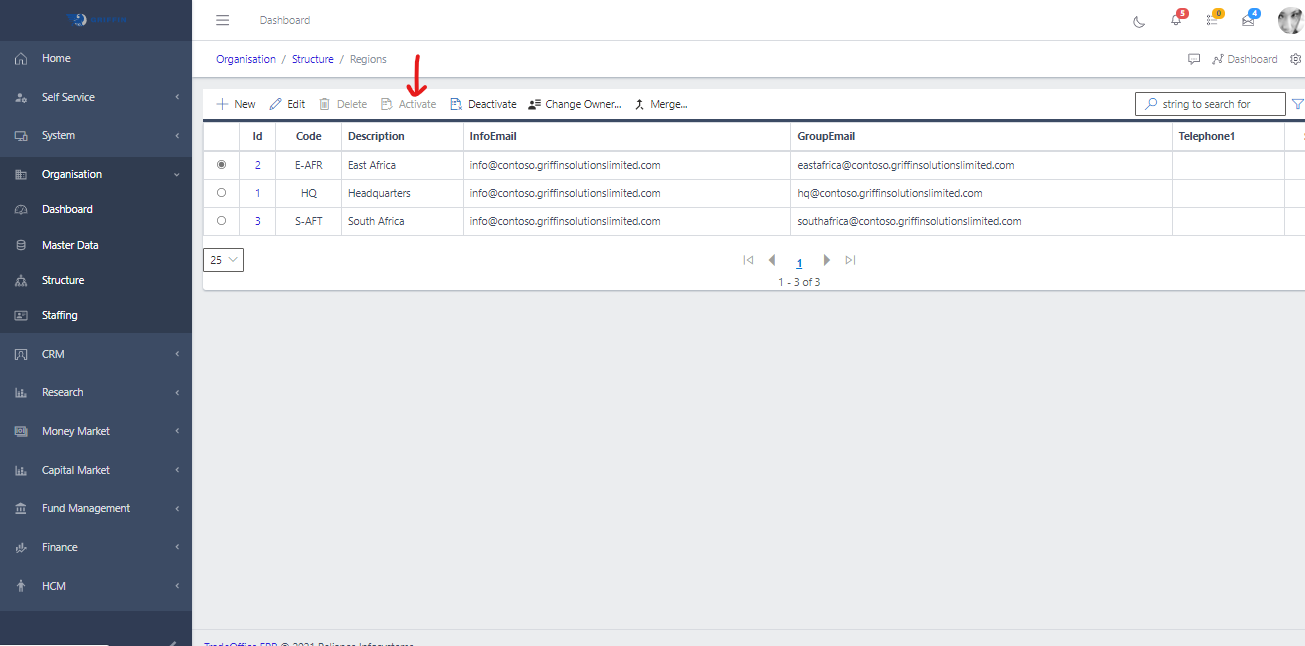
On save, the newly created Regions status will be Unapproved. Use the search filter to search for Regions with a Status of Unapproved.
Click the Activate button to activate the region and change its status from unapprove to active
Fig 3
Deactivate a Region
#
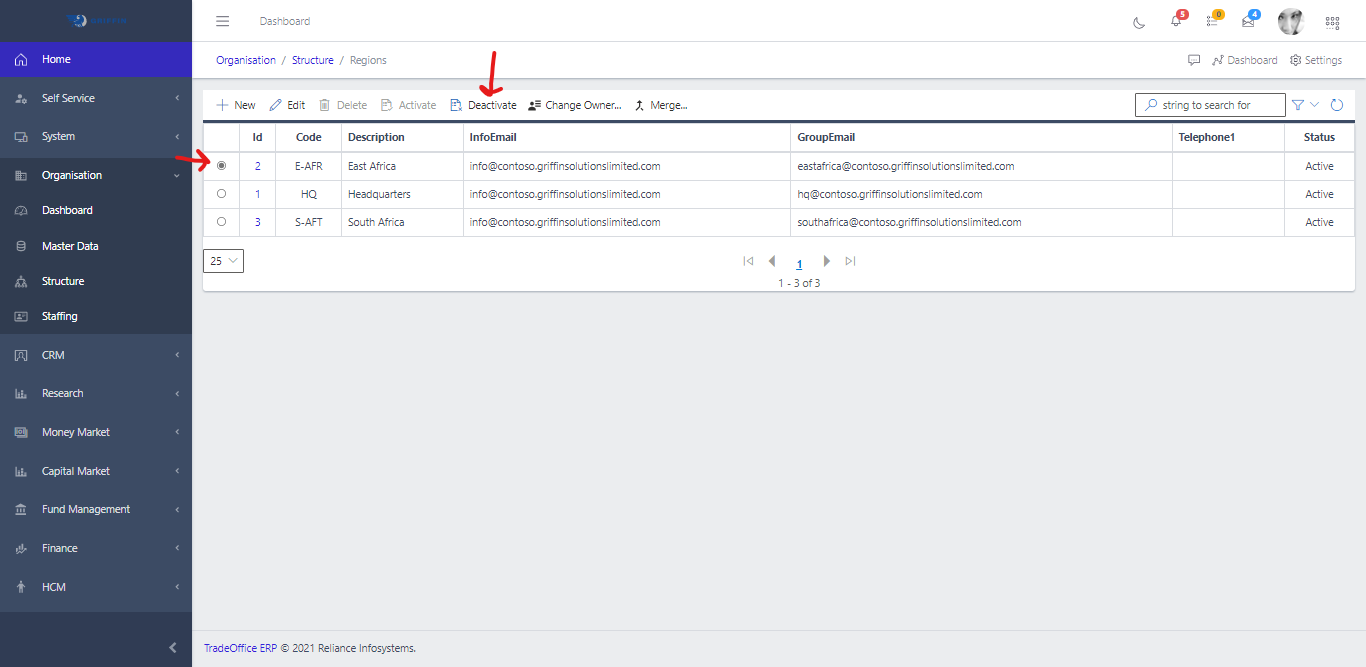
To deactivate an aApproved Region, search and select the active region you want to deactivate and click the Deactivate button
This works only if the item is Active
Fig 3.1
Change Ownership of a Region
#
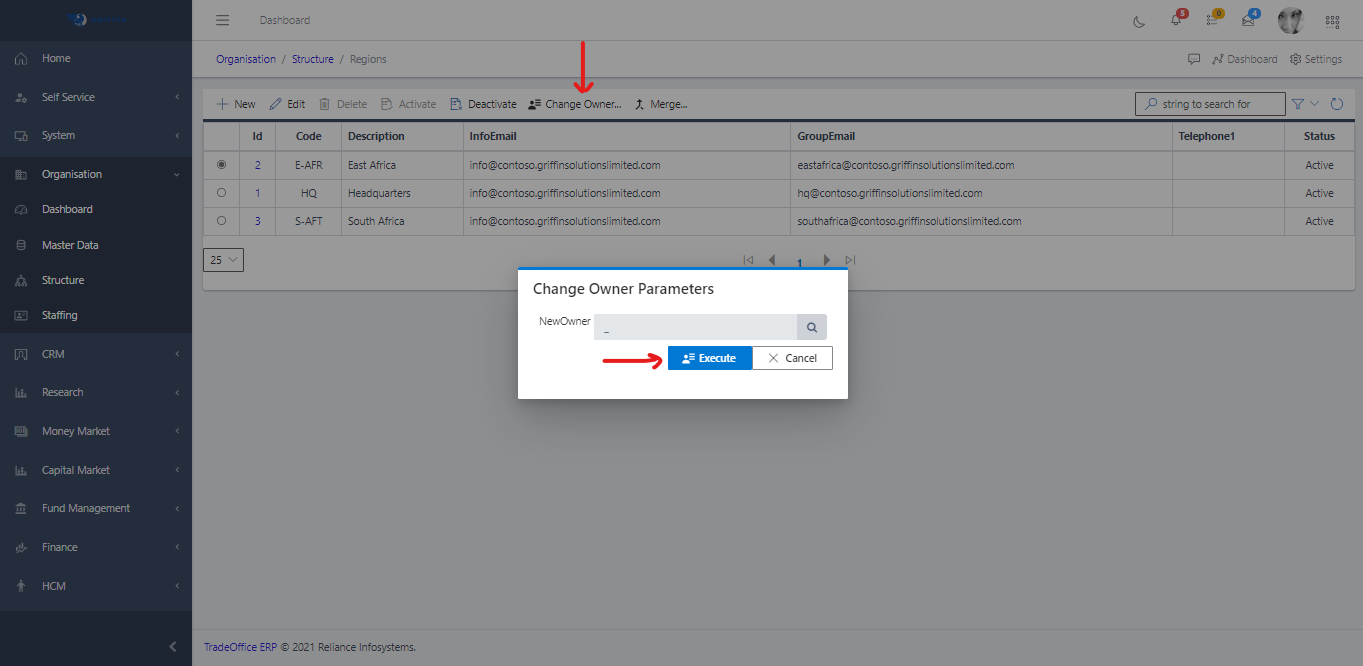
To change ownership of a region, select the particular record you want to change by clicking the radio button
Click the change button, input the new owner and click execute
Fig 3.2
Merge two Regions
#
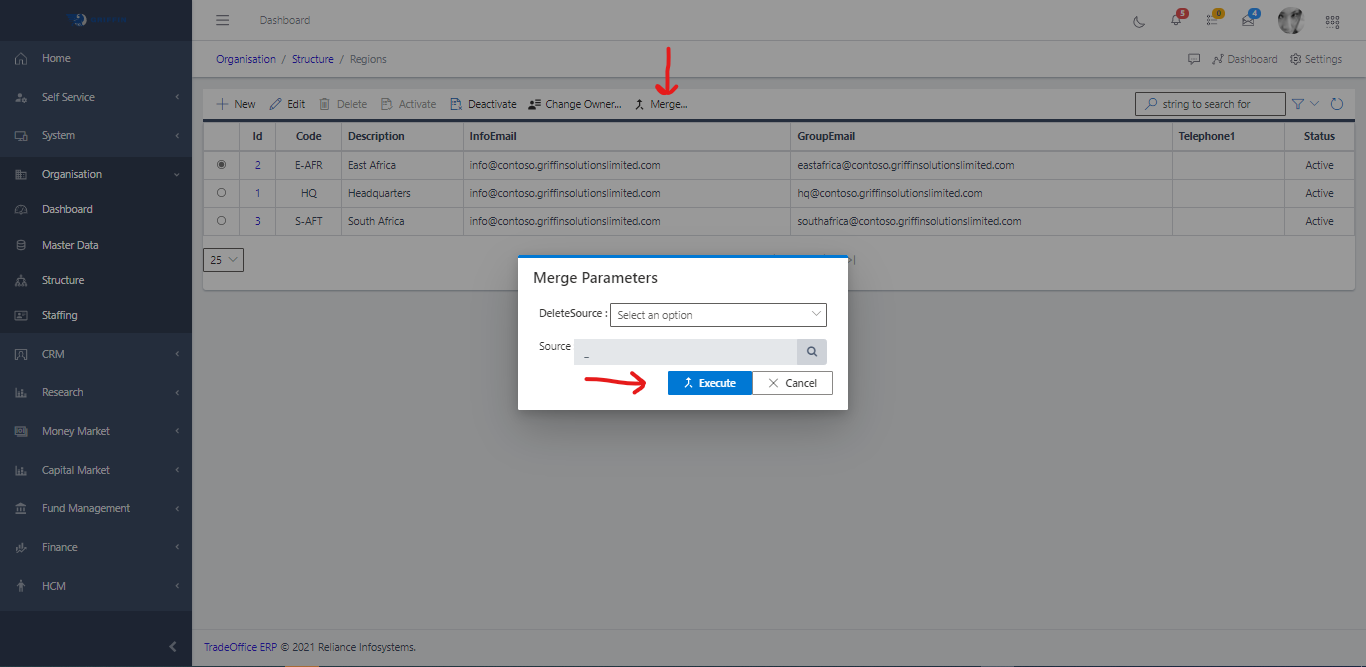
Merge two regions, by selecting a region and hitting the Merge button to select the other region to be merged with
Click the merge button, input the new owner and execute
Delete Source: True or False
Source: search for the company
Fig 3.3
Prev
Company
Next
Groups