Perf Appraisals

Concept

The Perf Appraisals page works with performance appraisal records in Self Service. It gives an employee or manager access to the personal workflow without needing the full back-office module.

Fields

FieldMeaning
Appraisal NoAppraisal reference.
PeriodReview period.
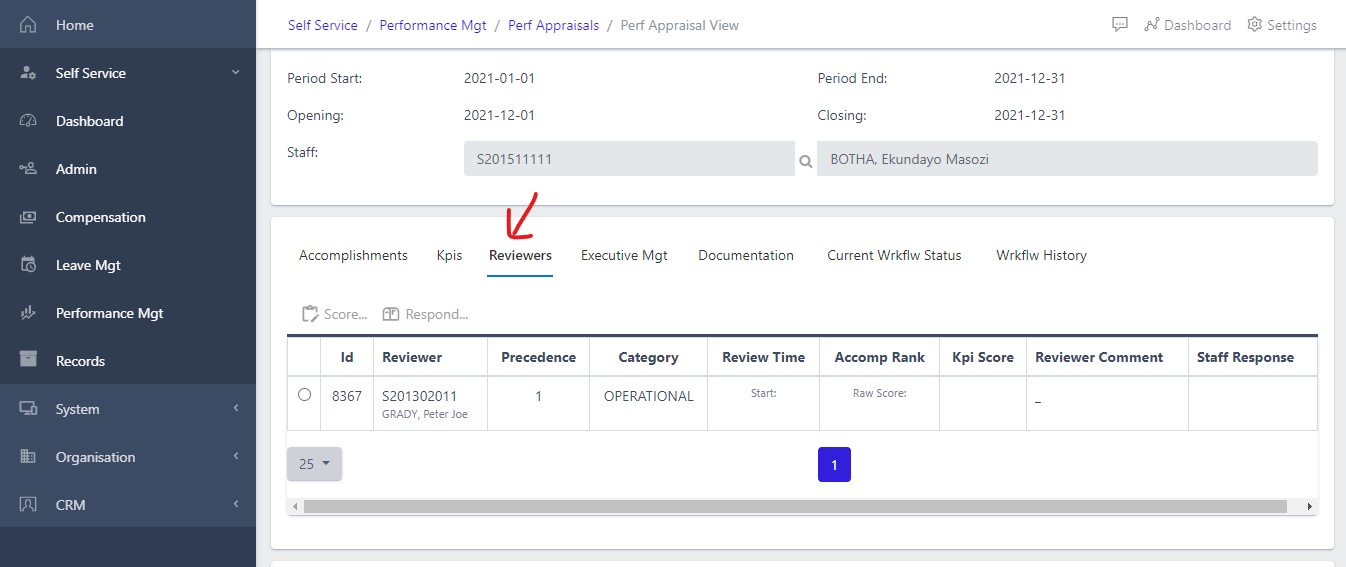
ReviewerAssigned reviewer.
StatusWorkflow state.

HowTo

  1. Open Self Service and choose Perf Appraisals from the Performance Mgt area.
  2. Use filters or search to find the relevant personal record.
  3. Open the record to review details, dates, amounts, balances, comments, or approval status.
  4. For editable workflows, choose New or Update, complete the required fields, and save.
  5. Confirm the request, profile, leave, appraisal, or compensation record shows the expected status.

Screenshots

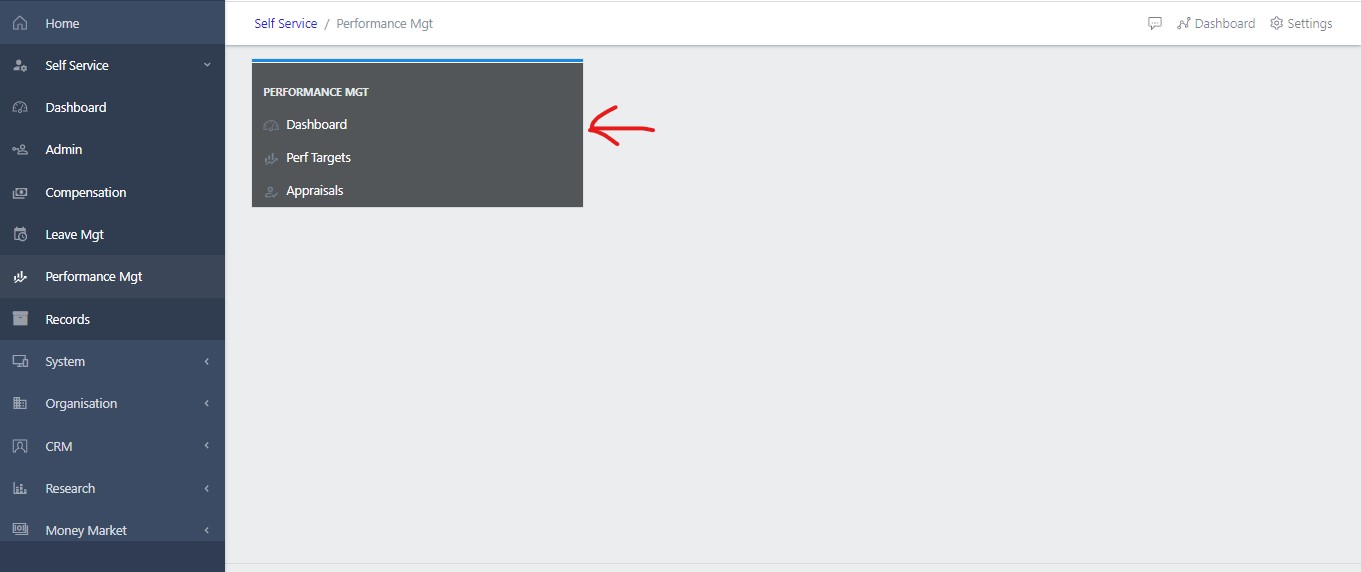
image Showing self-service dashboard
Fig 1 Showing self-service dashboard

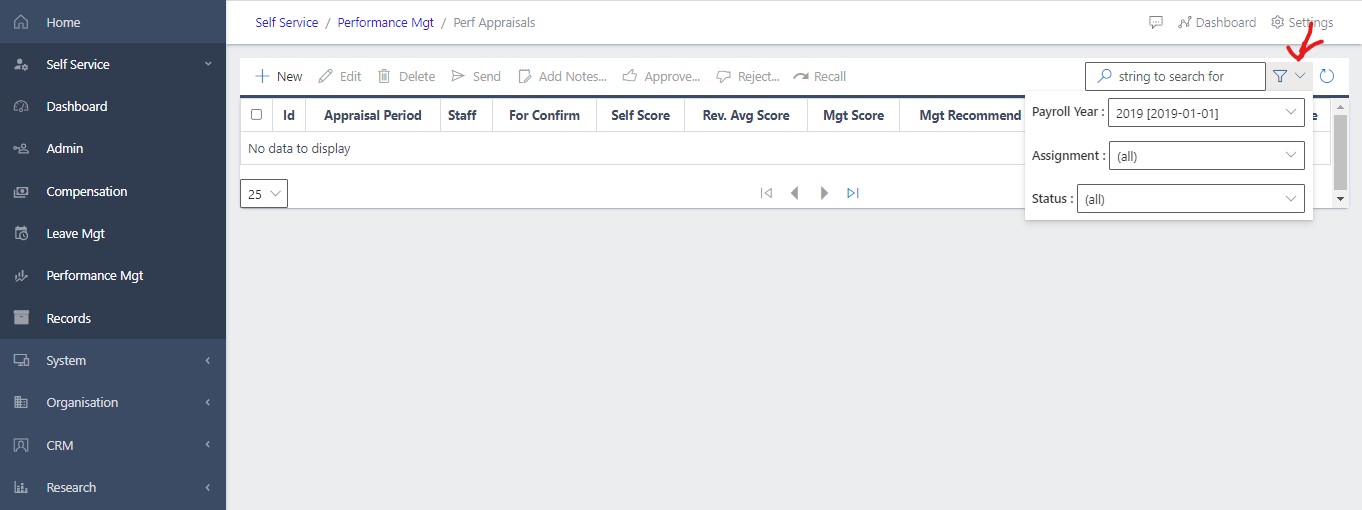
image Showing filters to the year in question
Fig 1.1 Showing filters to the year in question

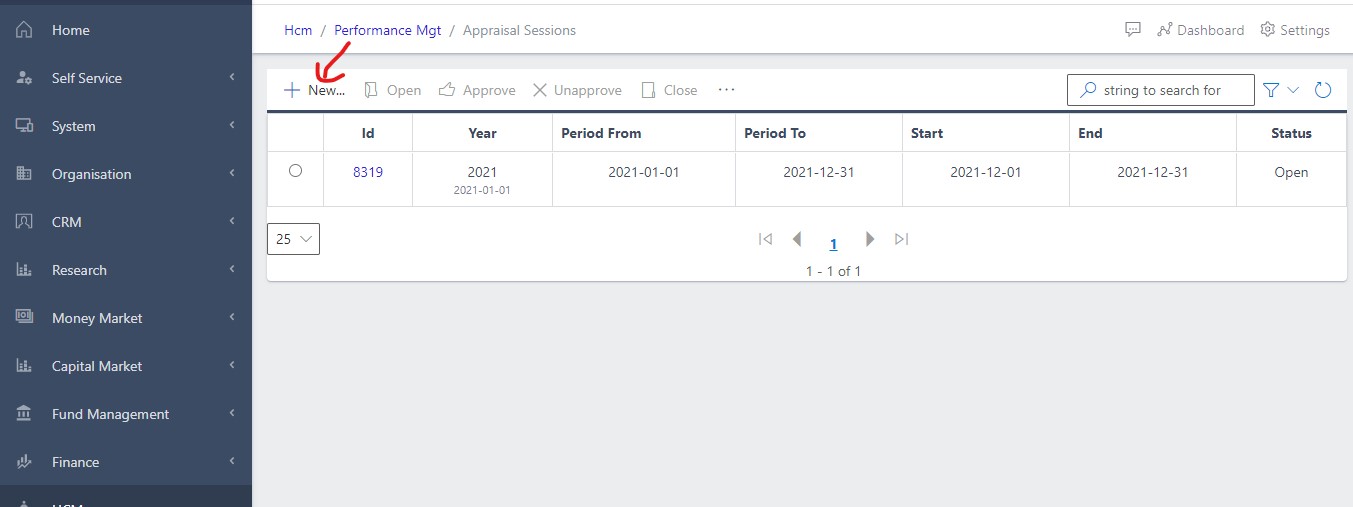
image Showing the new button
Fig 2 Showing the new/create button

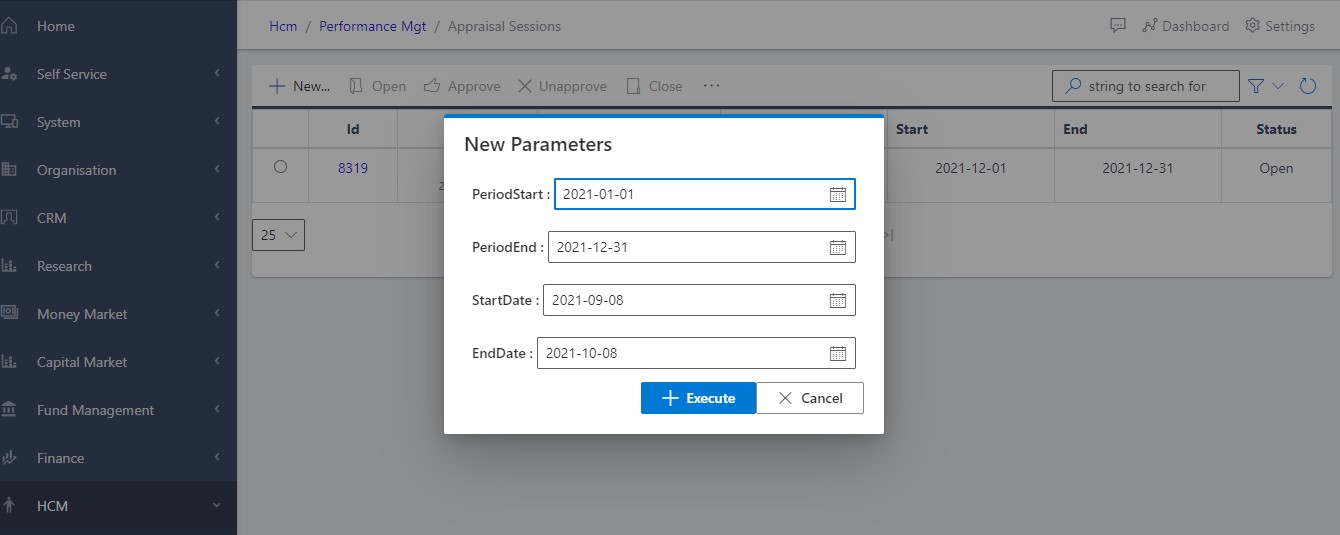
image Showing the dialog box when the create button is clicked
Fig 2.1 Showing the dialog box when the create button is clicked

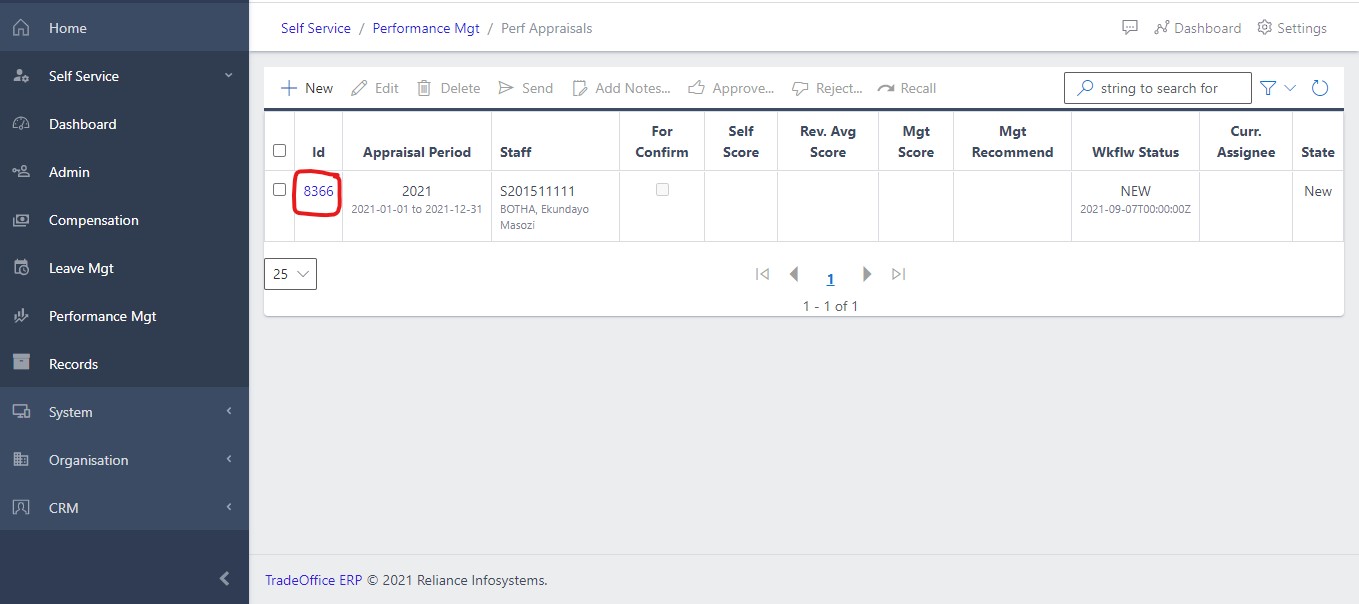
image Showing Perf Appraisal section from the app
Fig 3 Showing the Perf Appraisal section from the app

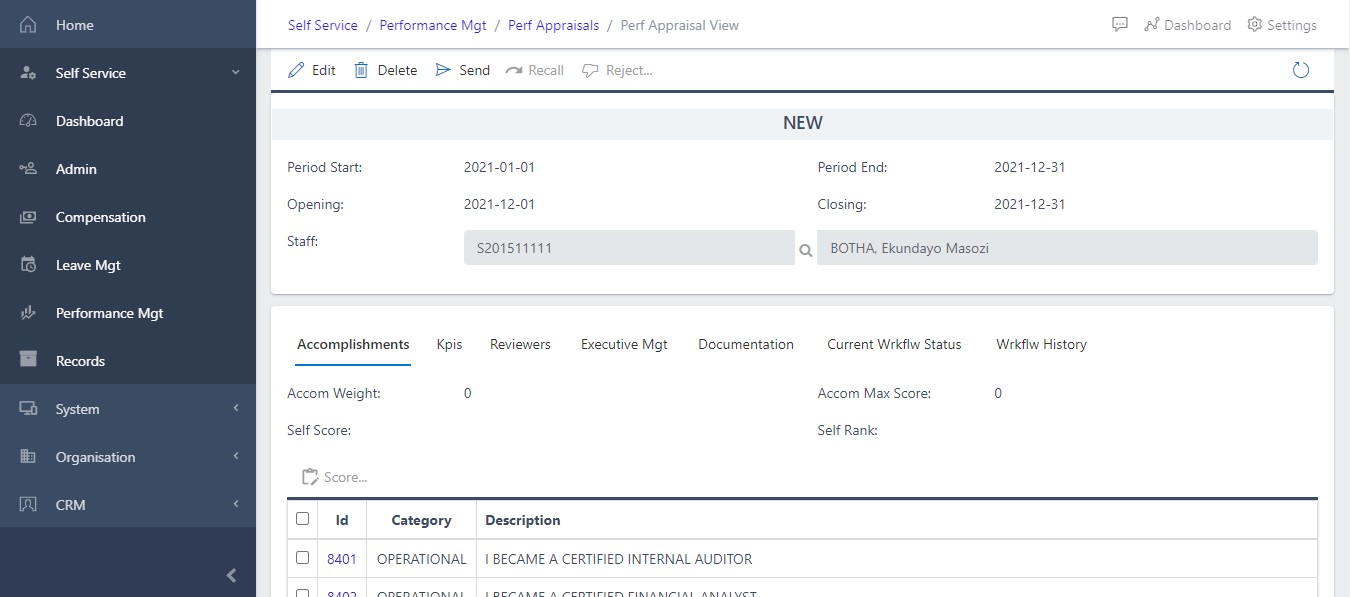
image Showing Perf Appraisal view
Fig 3.1 Showing the Perf Appraisal view

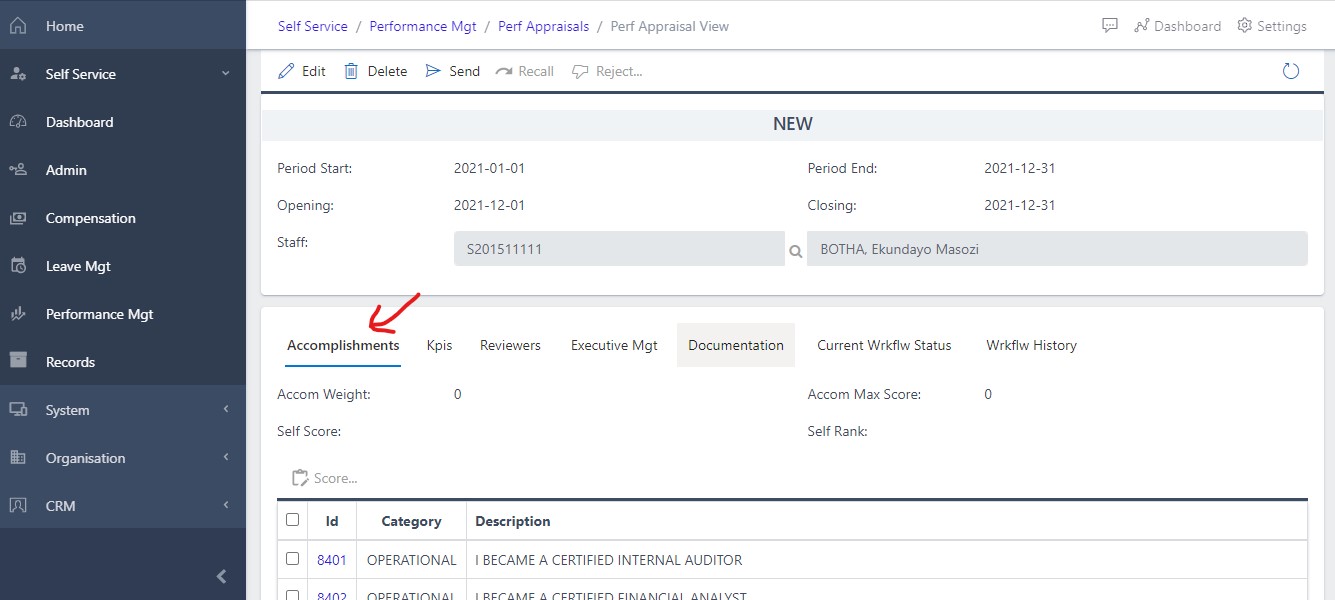
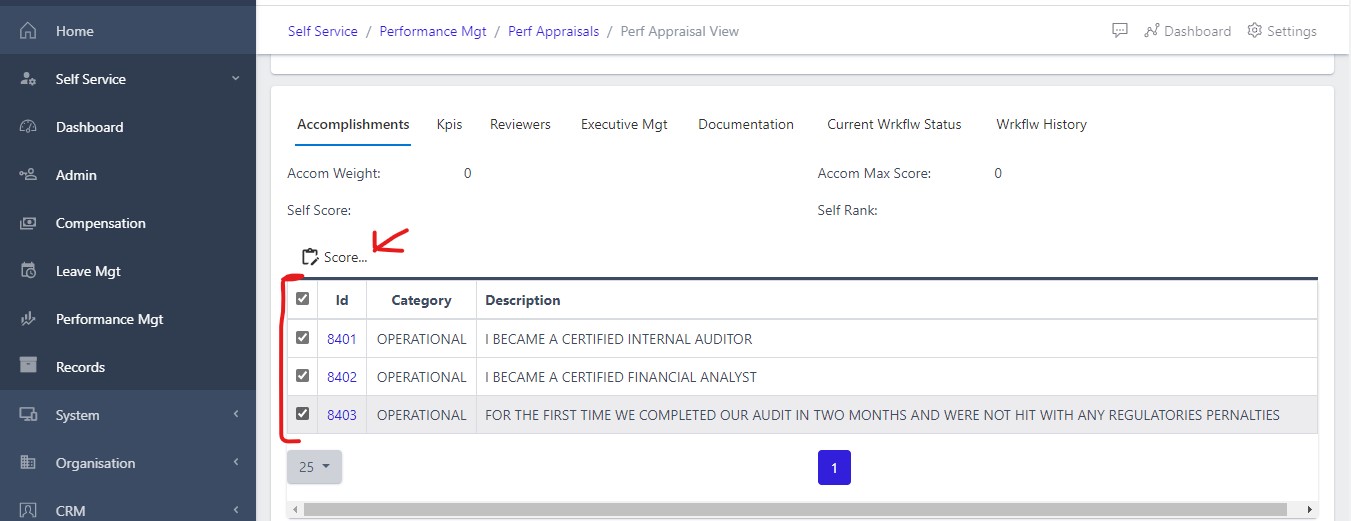
image Showing Accomplishment Pane view
Fig 4 Showing the Accomplishment Pane view

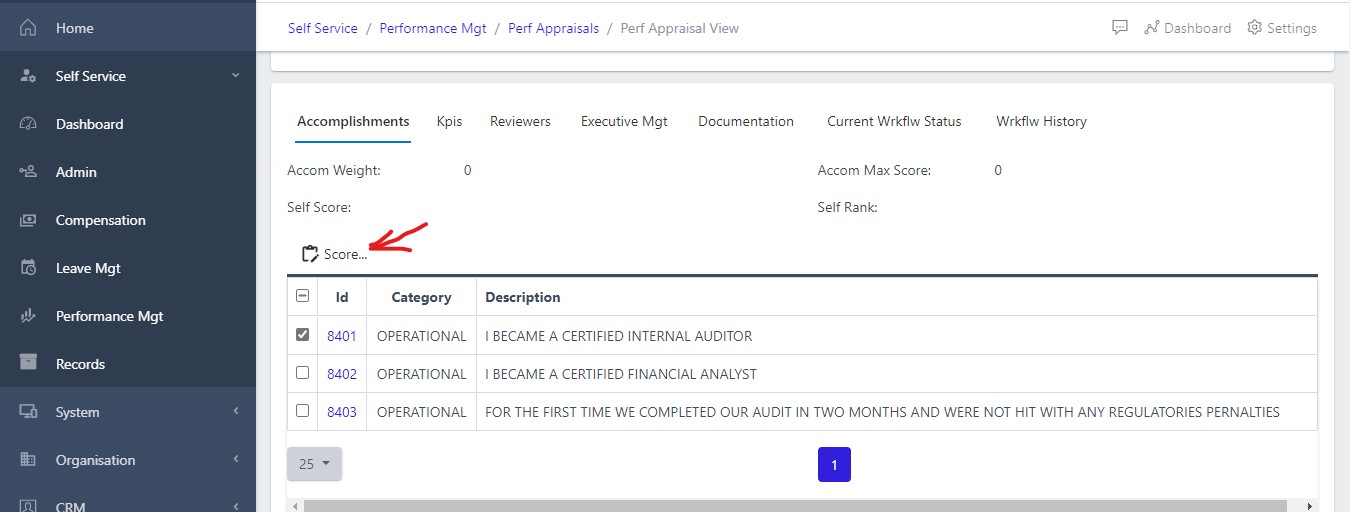
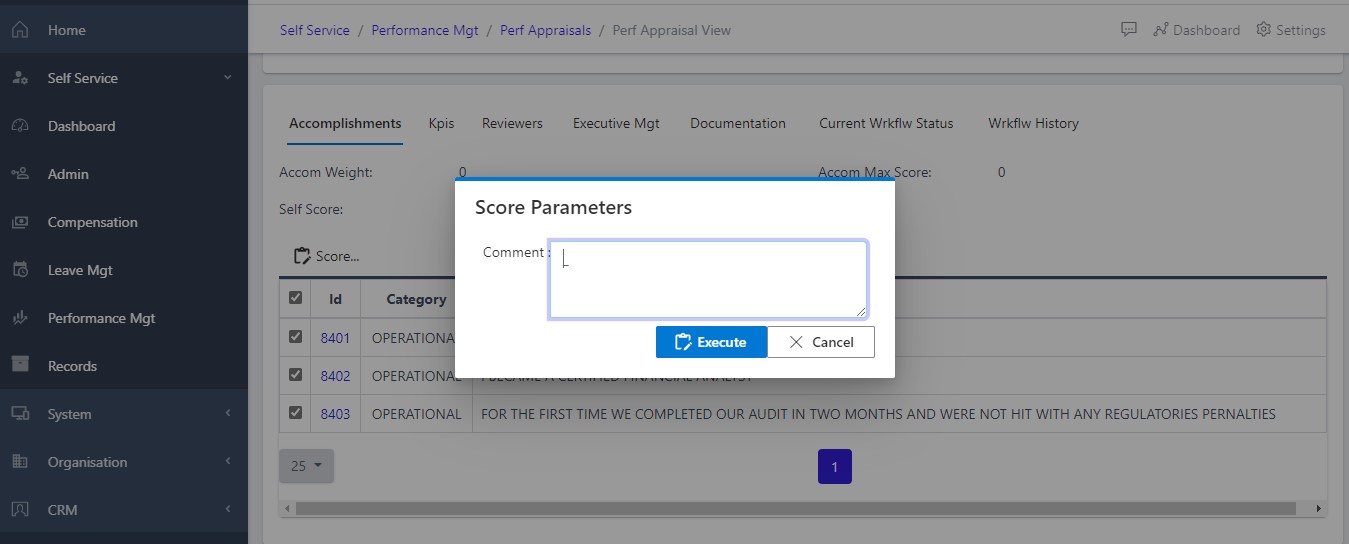
image Passing comment to accomplishments
Fig 4.1 Viewing individual accomplishment

image Viewing individual accomplishment
Fig 4.2 Viewing multiple accomplishments

image Showing Comment Pane
Fig 4.3 Passing comment to accomplishments

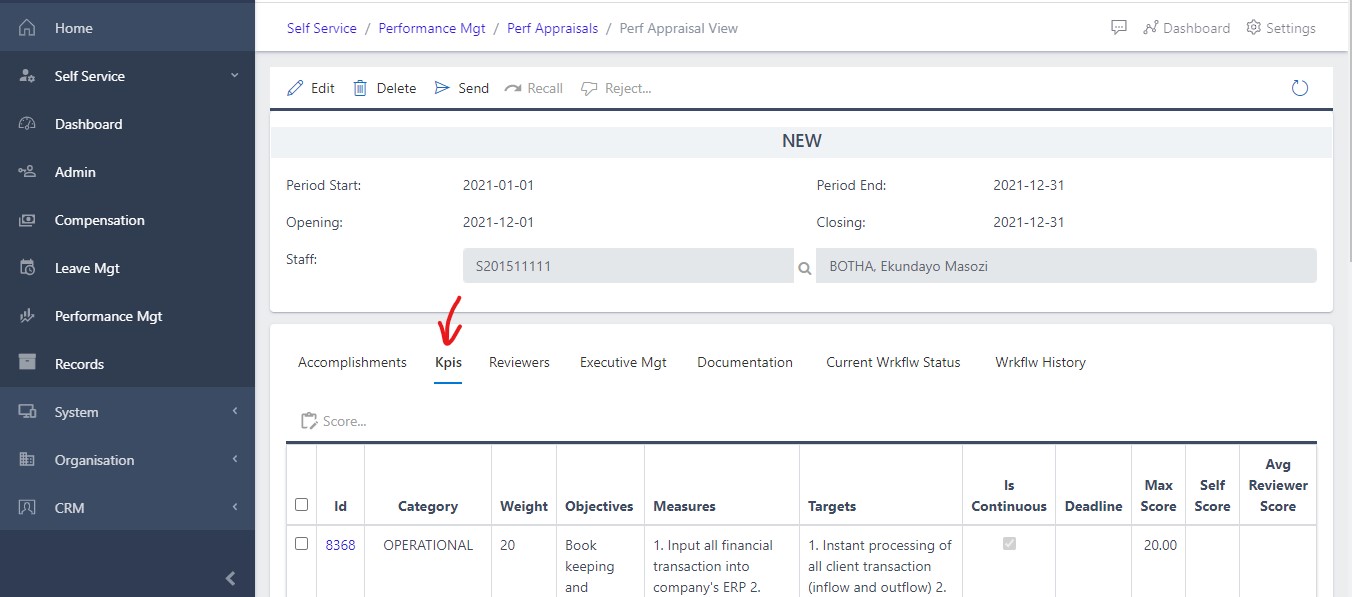
image Showing KPI Pane
Fig 5 Showing KPI Pane

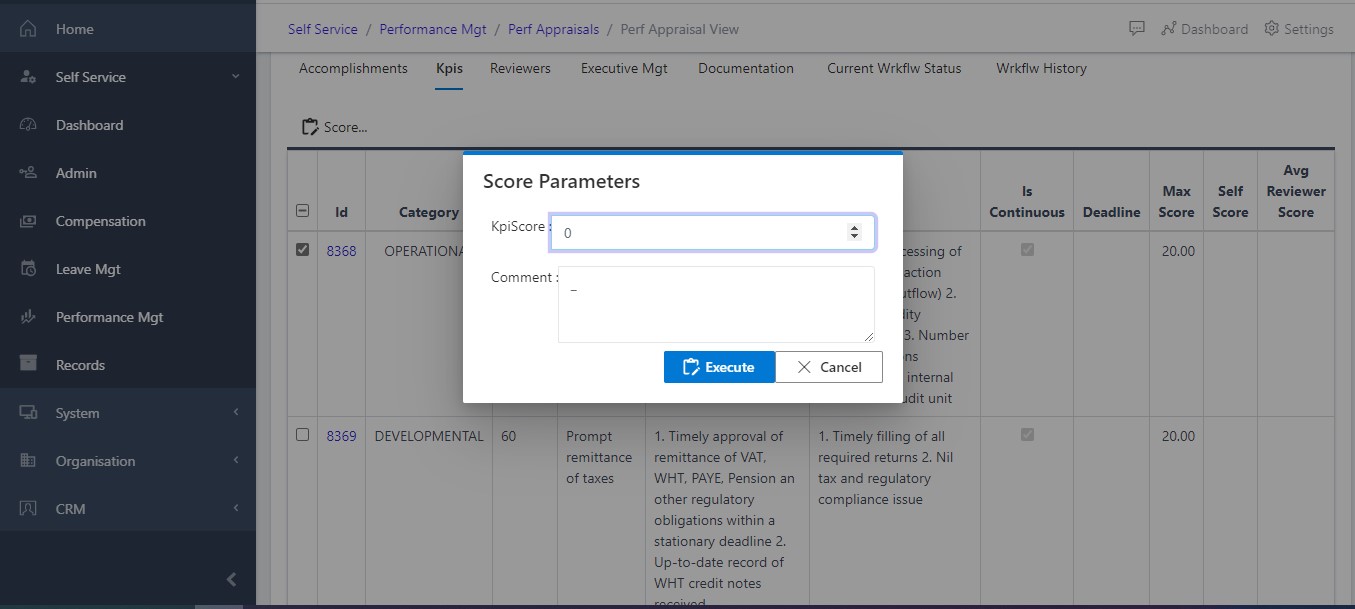
image Scoring and adding comment to individual KPI
Fig 5.1 Scoring and adding comment to individual KPI

image Showing each KPI score view
Fig 5.2 Showing each KPI Score view

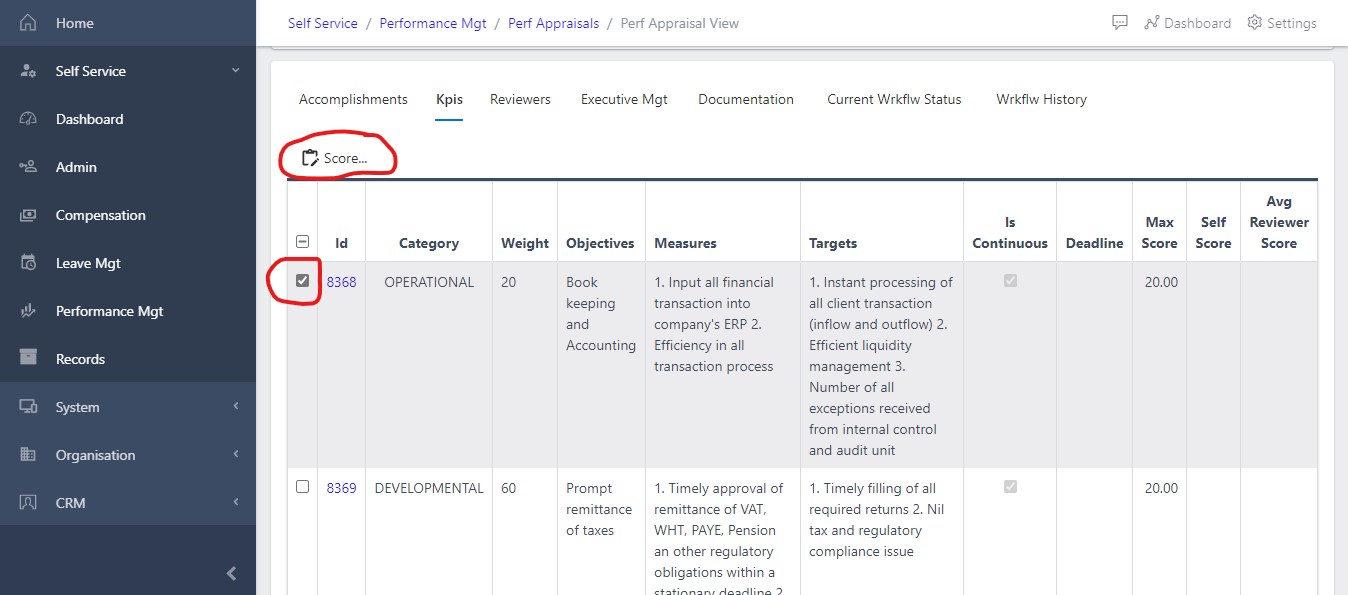
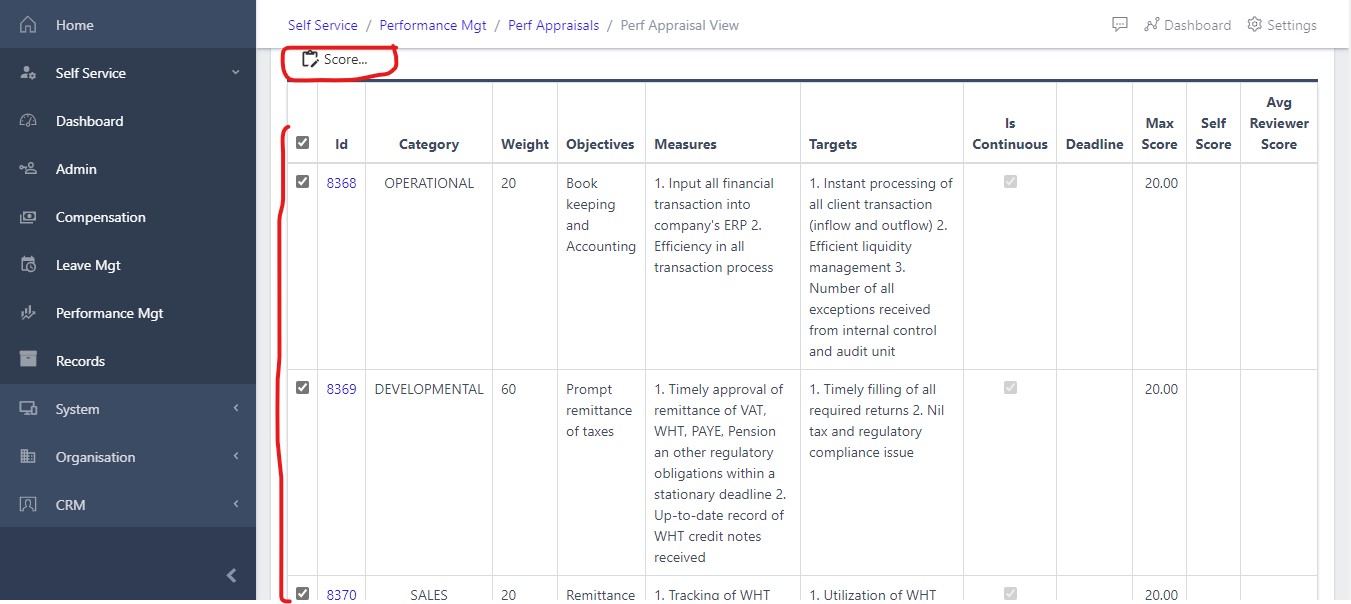
image Scoring multiple KPIs and adding comment
Fig 5.3 Scoring multiple KPIs and adding comment

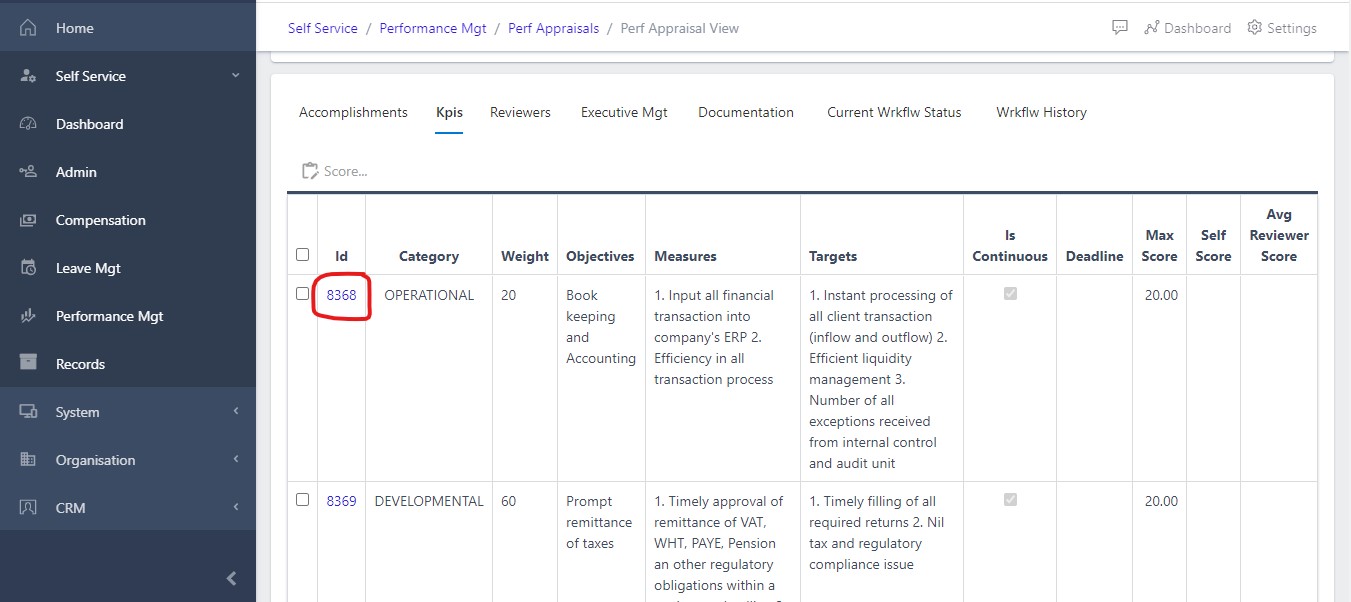
image Scoring multiple KPIs and adding comment
Fig 5.4 Clicking on the KPI ID

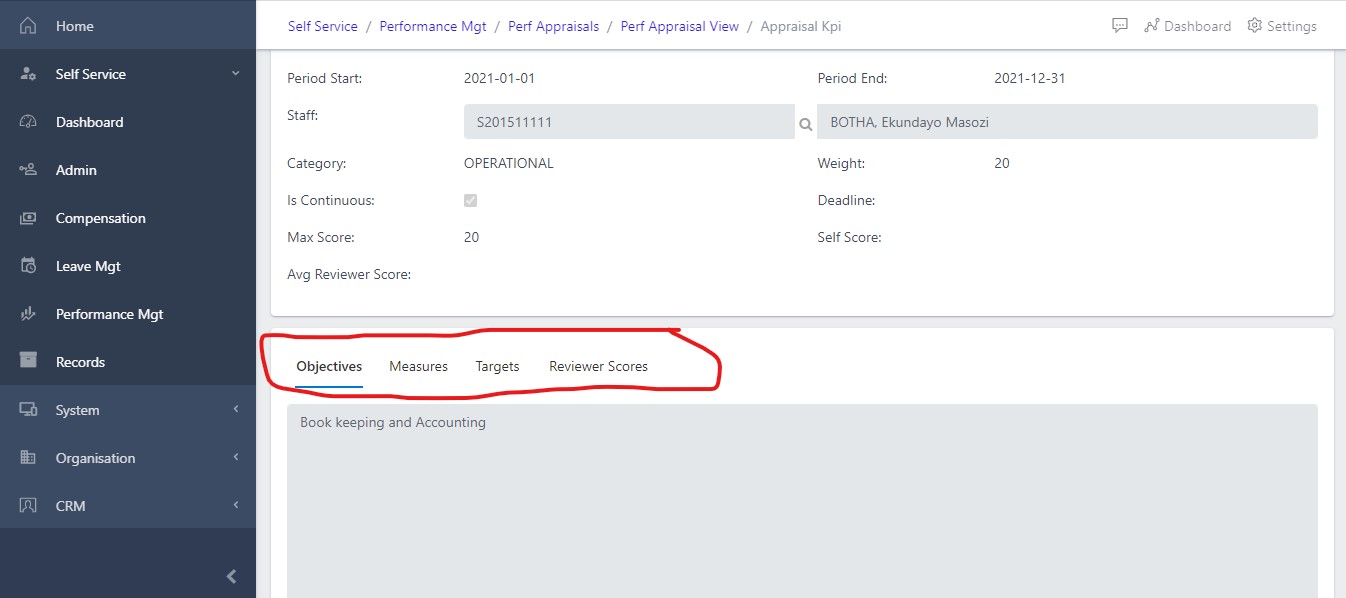
image Showing the reviewer’s score
Fig 5.5 Showing the reviewer’s score

image Showing the reviewer’s score
Fig 5.6 Showing the reviewer

image Showing the reviewer’s score
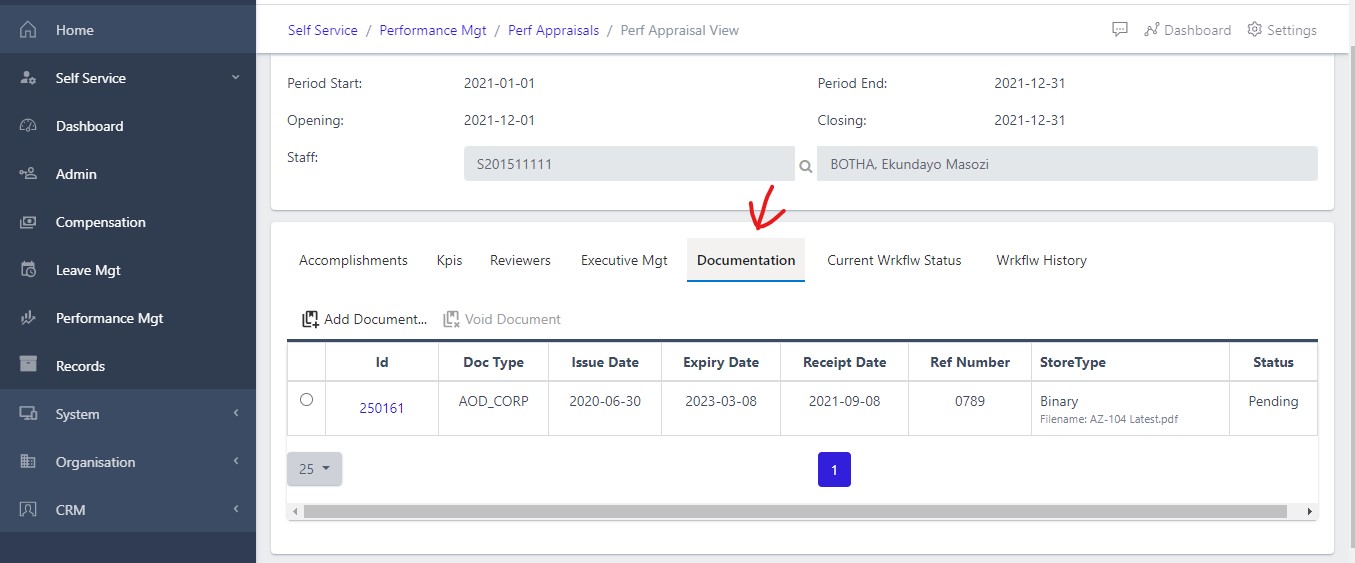
Fig 5.7 Showing the document uploaded